

Dashboards
In the admin: App › a Dashboard
A published dashboard opens from the App menu, at /admin/app/dashboards/<slug>. Viewers see its live version, read-only: its filters and its widgets, never the SQL behind them.
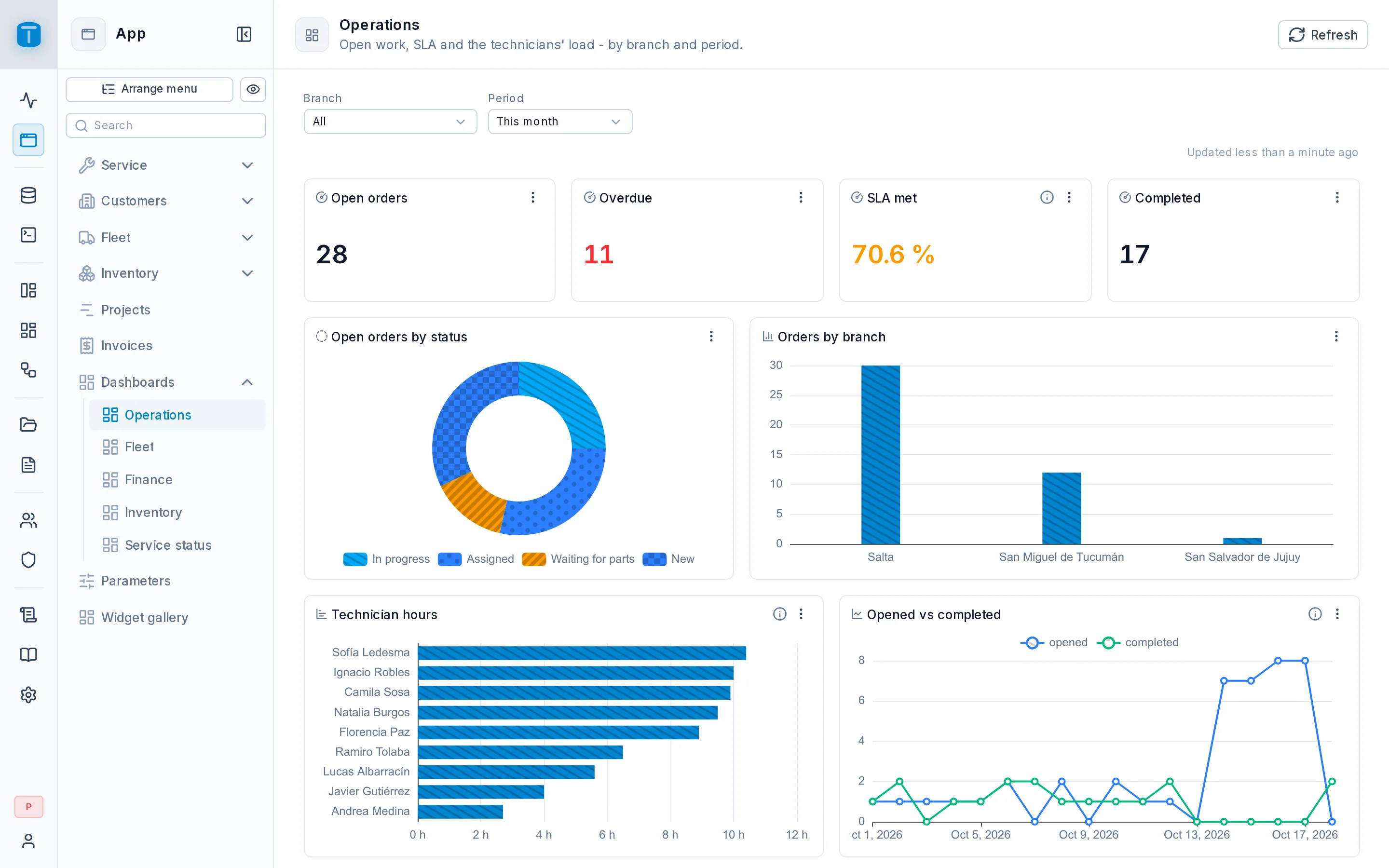
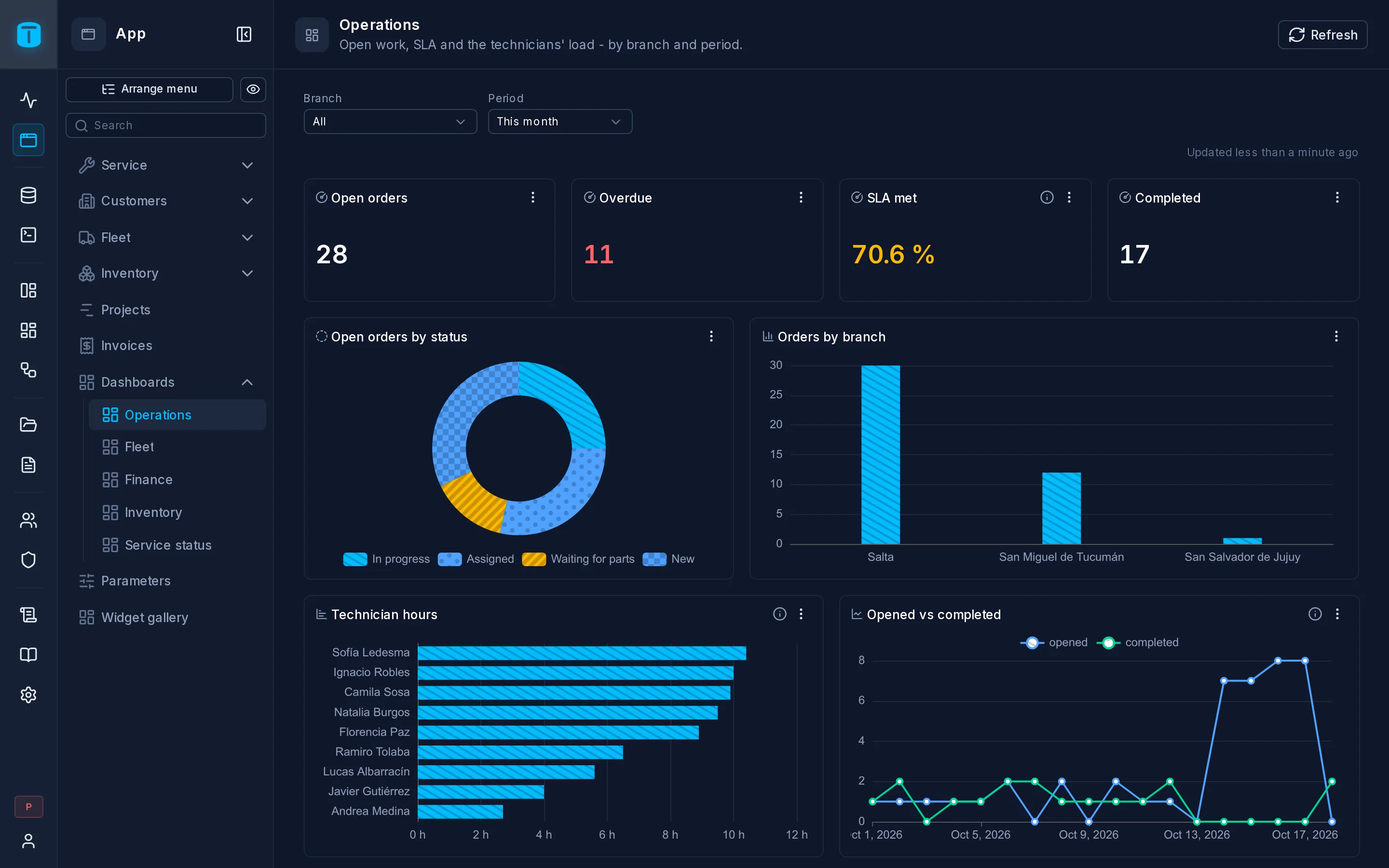
What it shows
A dashboard is a report its author publishes: everyone it's granted to sees the same data, whatever their role's row filters on the tables underneath. Two viewers see different numbers only when its queries read who is looking ($USER.*), such as my branch or my orders. See Object access.
The page
- The header has the dashboard's name, description and icon, and Refresh, which runs every widget again. When the dashboard refreshes by itself, a badge says how often: Auto-refresh: every minute.
- The filters bar has one control per variable: a period with its presets and Custom range, a list with All, a text or a number. Reset puts every filter back to its default. Changing a filter updates only the widgets that use it.
- Updated 2 minutes ago says how fresh the data is.
- Tabs, when the dashboard has them. A widget loads when its tab is open and it scrolls into view.
The filters and the open tab are part of the page's address, so a copied link opens the same view: ?branch=…&period=this_month&tab=fleet.
A widget
While its query runs, a widget shows a placeholder, and Still computing… after a few seconds. Then it shows its data, or says why it can't:
- No data: nothing matched. No data for this period when it reads a date range. The author may have set a text of their own.
- This widget couldn't load its data: the database refused the query. Viewers never see the SQL error.
- It took too long: the query ran past the time limit.
- A warning triangle beside the title: the result was cut at the row limit, Showing the first 1000 rows. Only the author can change that, by filtering or summarizing in the query.
An ⓘ beside the title shows the widget's description. A long title wraps to two lines before it's cut; hovering or tapping it shows all of it.
Clicking
A widget that does something on a click shows a hand cursor, and its tooltip ends with what the click does: Click to filter, Click to see the records, Click to open the dashboard. On a touch screen, the first tap shows the tooltip and the second one runs it.
A click that filters the dashboard counts as a step: the browser's Back undoes it.
Downloads and full screen
Each widget's ⋮ has:
- Download CSV and Download Excel: the columns the widget shows, in its order, titled and formatted as on screen. If the result was cut, the file says so.
- Download image: a chart as a PNG, named after its title.
- Full screen: the chart at the size of the screen, or a table with all its rows.
Every download is recorded in the audit log with the dashboard, the widget, the format and the number of rows, never the data itself.
On a tablet or a phone
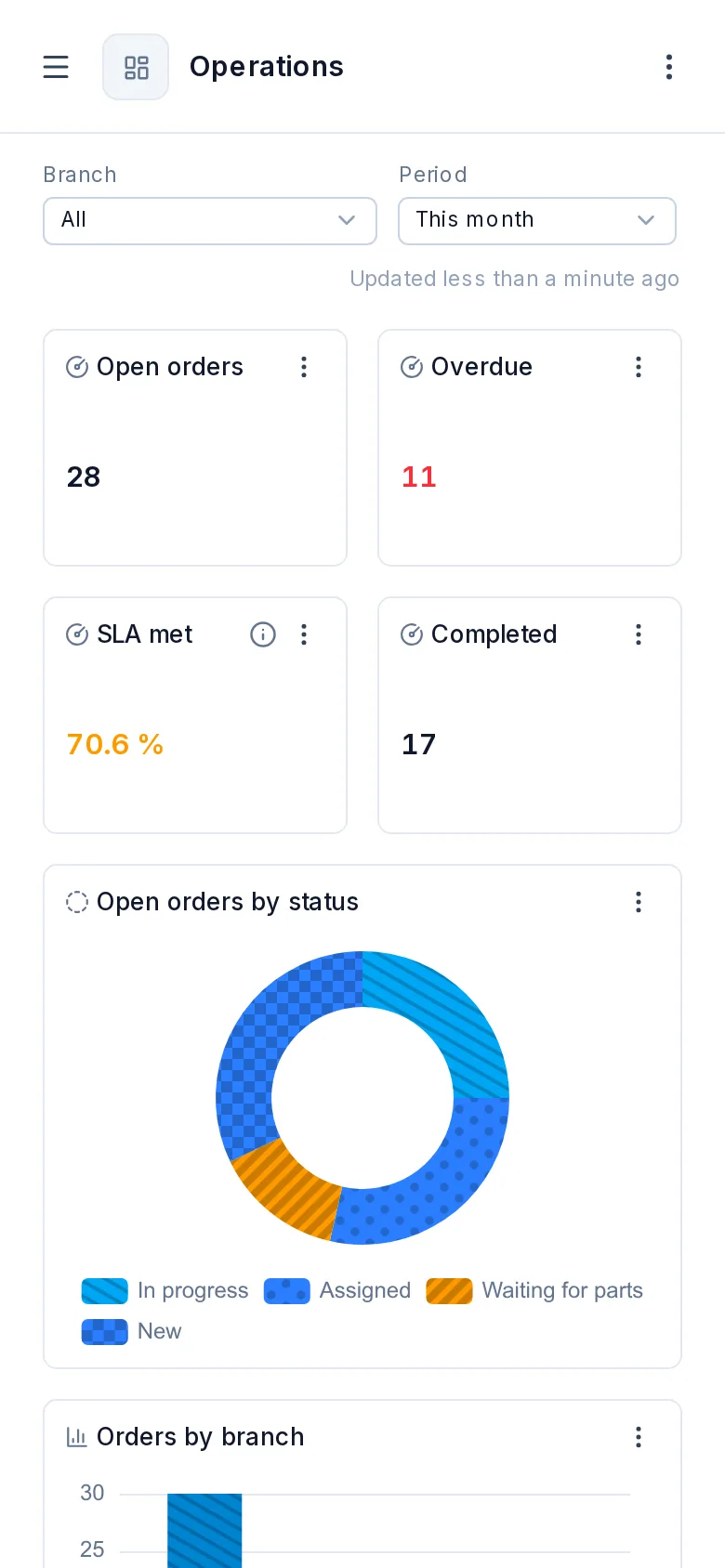
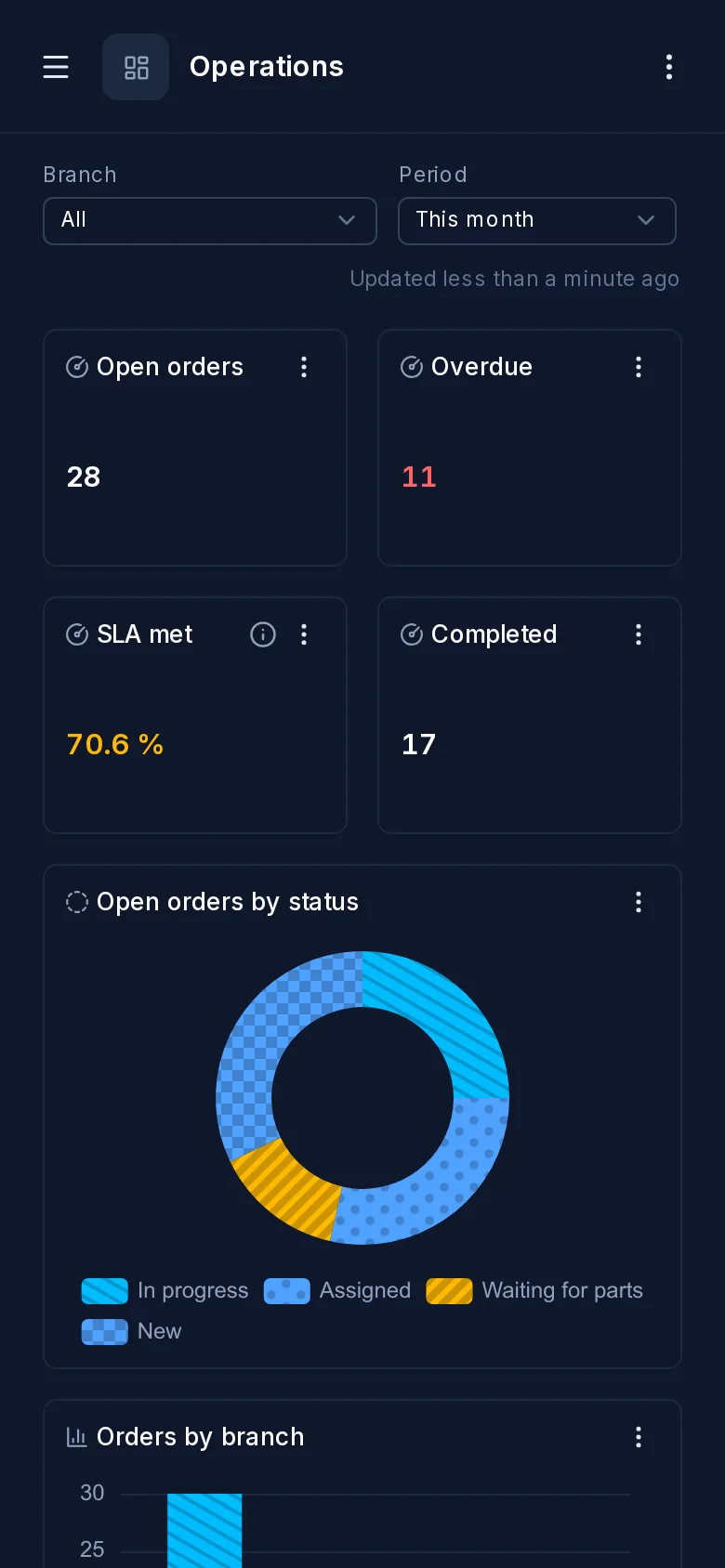
A dashboard fits the screen it's on, with nothing for the author to do. On a tablet or a phone, each widget takes the whole width, except small ones like KPIs, which sit two to a row. A widget the author hid on phones isn't there, and the tabs scroll sideways.
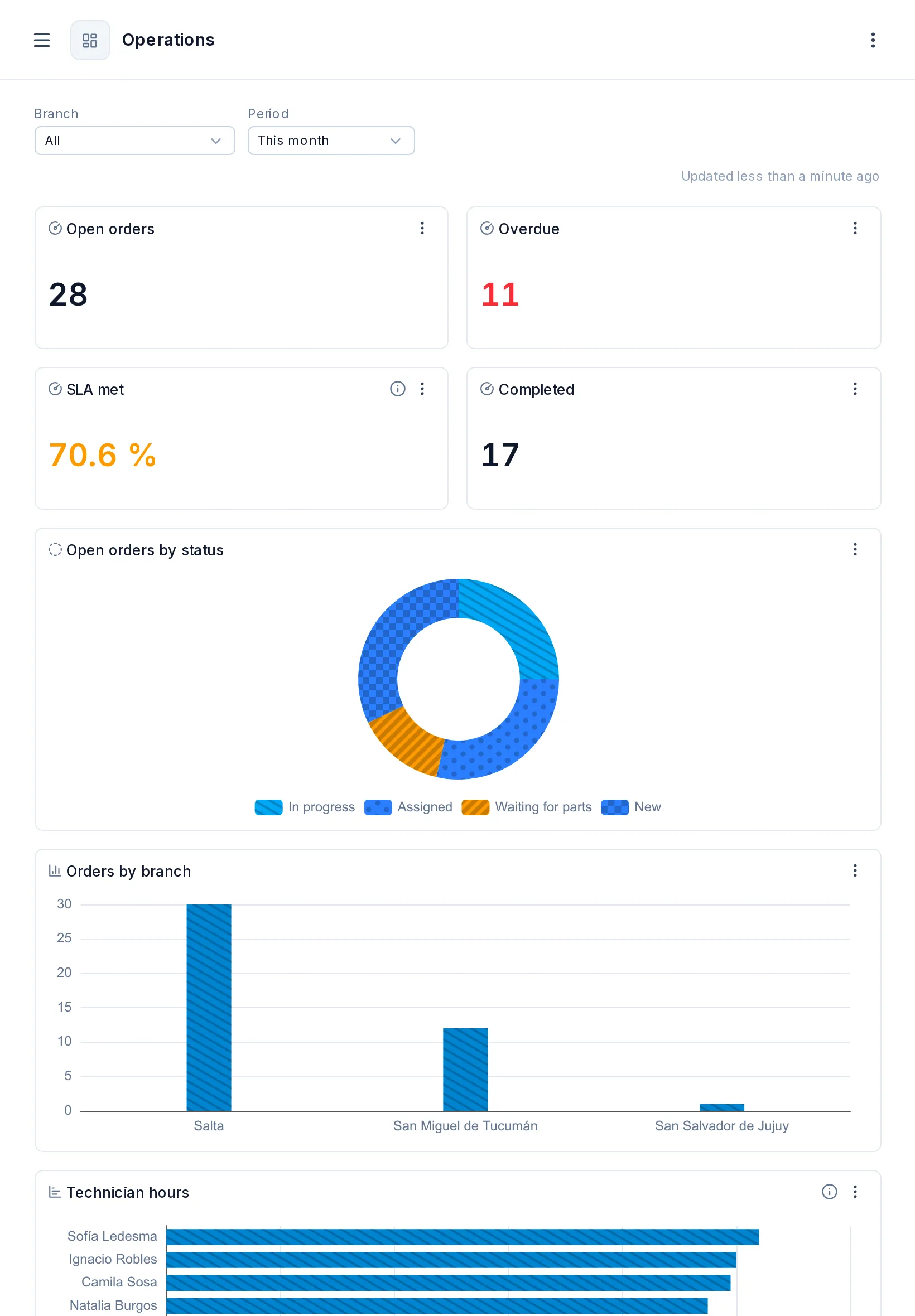
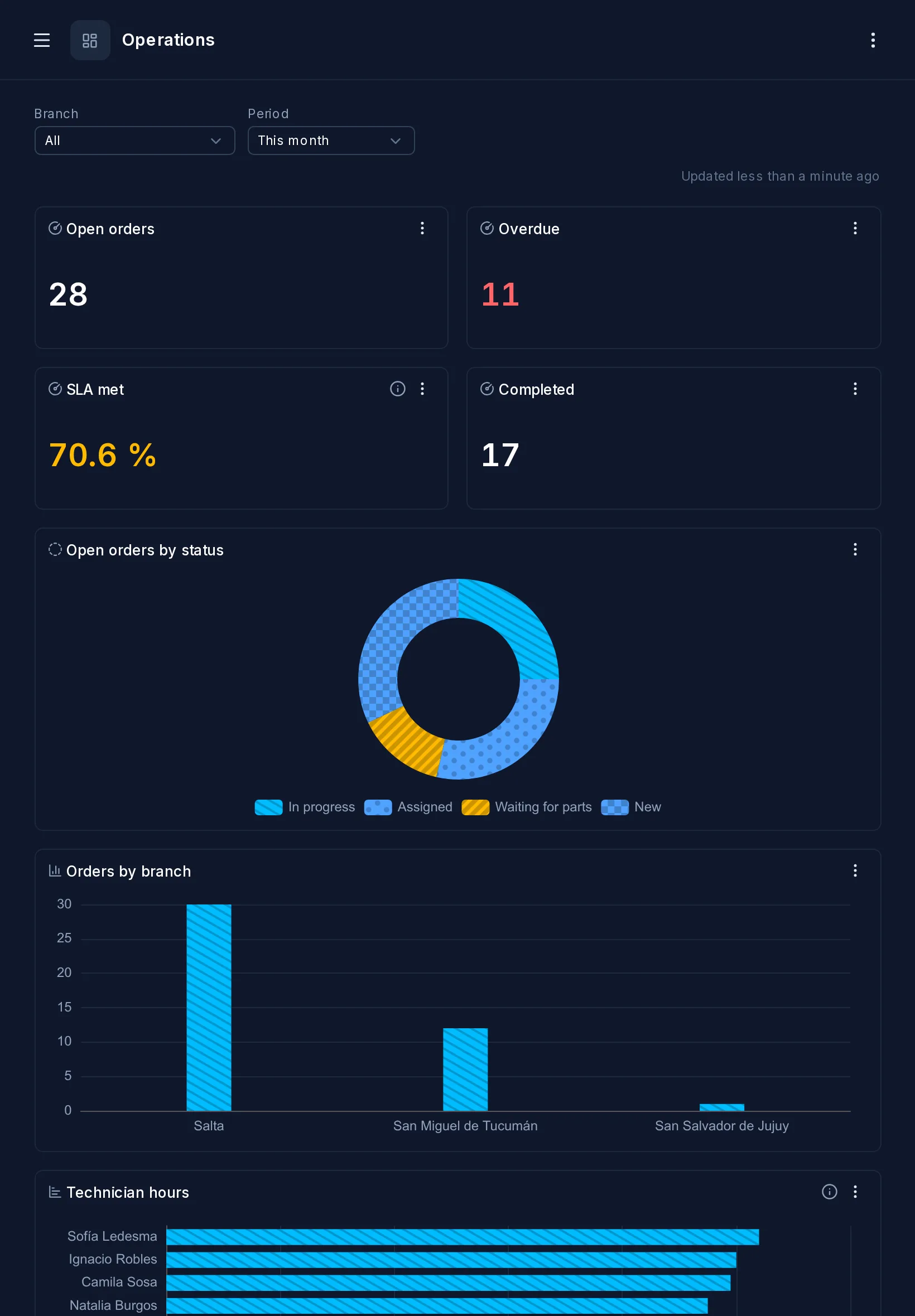
Not available
Dashboard not available means it doesn't exist, isn't published, or none of the viewer's roles is granted it. The three look the same on purpose, so the message reveals nothing. A published dashboard with no widgets yet says This dashboard has no widgets yet.
Inside a page or another site
The same dashboard can show inside a DataView page, its filters set by the page, with the Dashboard widget. Outside TotalBase, for people without an account, it's shared as a link or a signed embed.
Next steps
- DataViews: working with records in the App.
- Arrange menu: where dashboards appear in the menu.