

Quickstart with AI
In the admin: Settings › MCP · My account › Tokens
TotalBase is built to be administered by AI agents. Its MCP server gives an agent such as Claude Code the same tools you use in the admin: create tables, set permissions, design screens, build dashboards, write workflows. You describe the application, and the agent builds it while you watch.
The result is a real application, not generated code to maintain. The tables are PostgreSQL tables, the screens are DataViews you can open and edit in the admin, and everything the agent did is in the audit log.
The whole of Acme - its tables and rules, roles, screens, dashboards, workflows, images and menu - is 354 MCP calls. Replayed from a script against an empty instance, they take under a minute; the build, from starting the containers to the App open, under two. An agent writing the same calls from your prompt takes longer, as long as its thinking does, but nothing in between is done by hand.
One prompt
This is the prompt behind the video:
Build a field service application for Acme, a company that installs and repairs
air conditioning and solar equipment at its customers' sites.

- Customers, each with one or more sites (address and map location).
- Work orders: a site, a type (repair, maintenance, installation), a priority
  (low, normal, high, urgent), a status (new, assigned, in progress, completed,
  cancelled), the assigned technician, a description and a resolution.
  A completed order must have a resolution.
- Technicians are users. Each technician sees and updates only the orders
  assigned to them. Dispatchers see every order and assign them.
- Screens: a kanban of work orders by status for dispatchers, colored by
  priority; a phone-friendly form where a technician closes an order; a map
  of the sites.
- A dashboard with open orders by status, orders by priority, and the
  overdue ones.
- Load realistic sample data: 10 customers in Salta, 20 sites, 40 orders.
- Publish everything for the right roles.
What the agent does
Following TotalBase's own guide for agents, it works in this order:
- Models the data as PostgreSQL tables:
customers,sites,work_orders, with foreign keys,CHECKlists for status and priority, and aCHECKthat a completed order has a resolution. - Exposes the tables to the API and presents their columns: labels, status colors, how a site is shown when an order points at it.
- Creates the roles Dispatcher and Technician, and grants them: Technicians read and update
work_orderswheretechnician = $USER.id. - Loads the sample data through the Data API, under the same rules as any user.
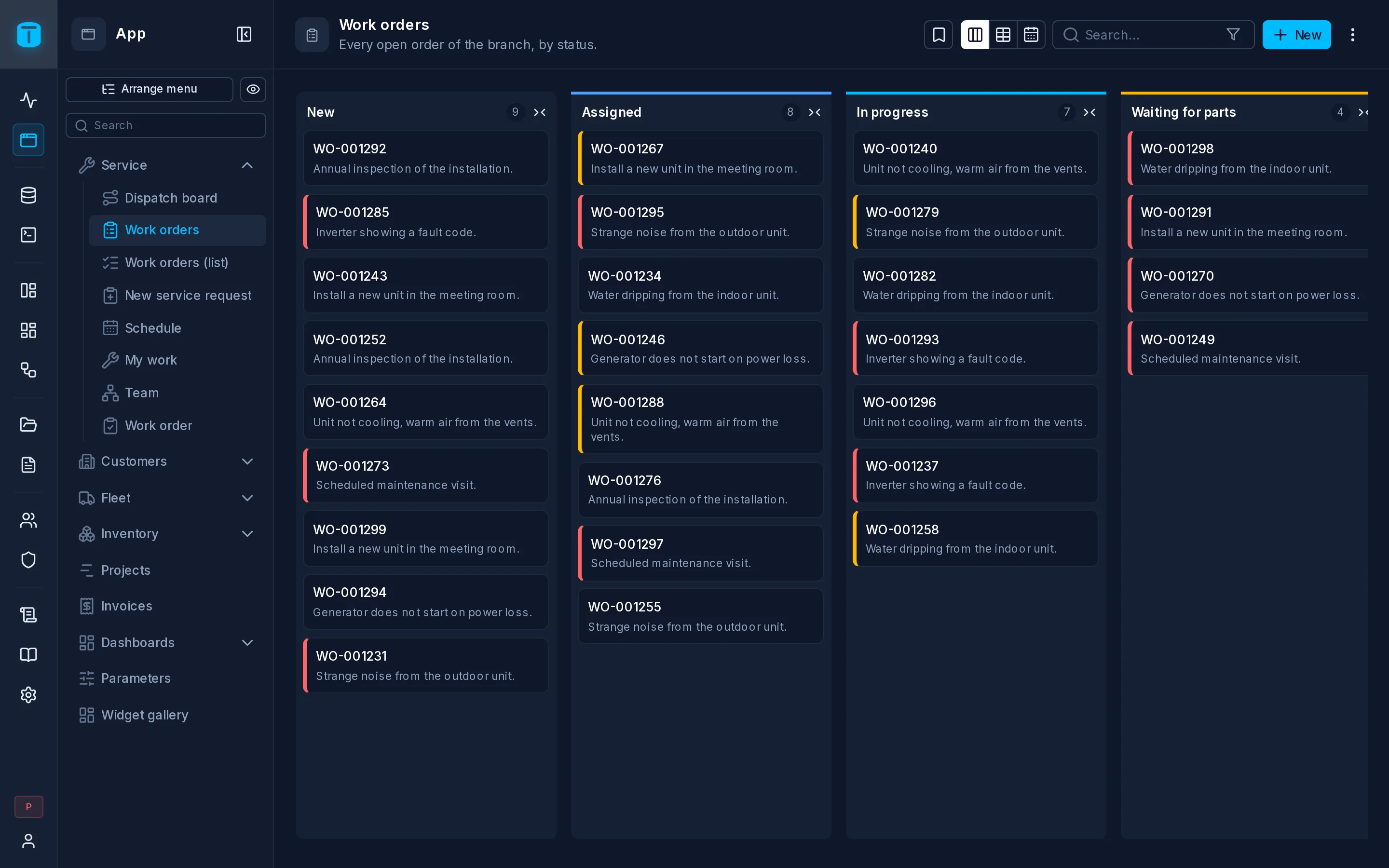
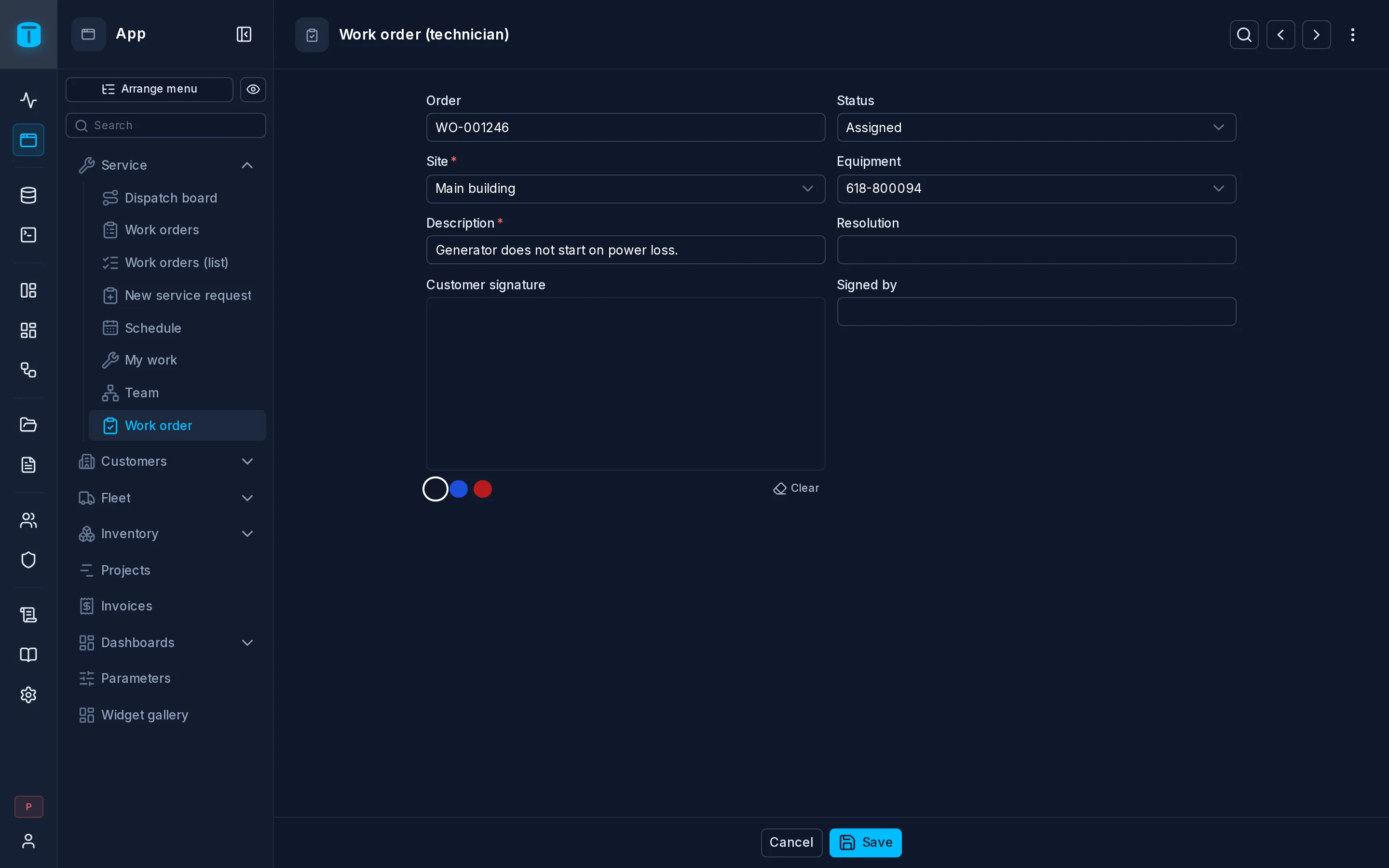
- Builds the screens: a Kanban DataView by status, a Form for technicians, a Map of the sites.
- Builds the dashboard with three SQL-backed widgets.
- Publishes the screens and the dashboard to the right roles, and arranges the App menu.
At the end it tells you what it built and how to check it: for example, sign in as a technician and confirm you see only your orders.
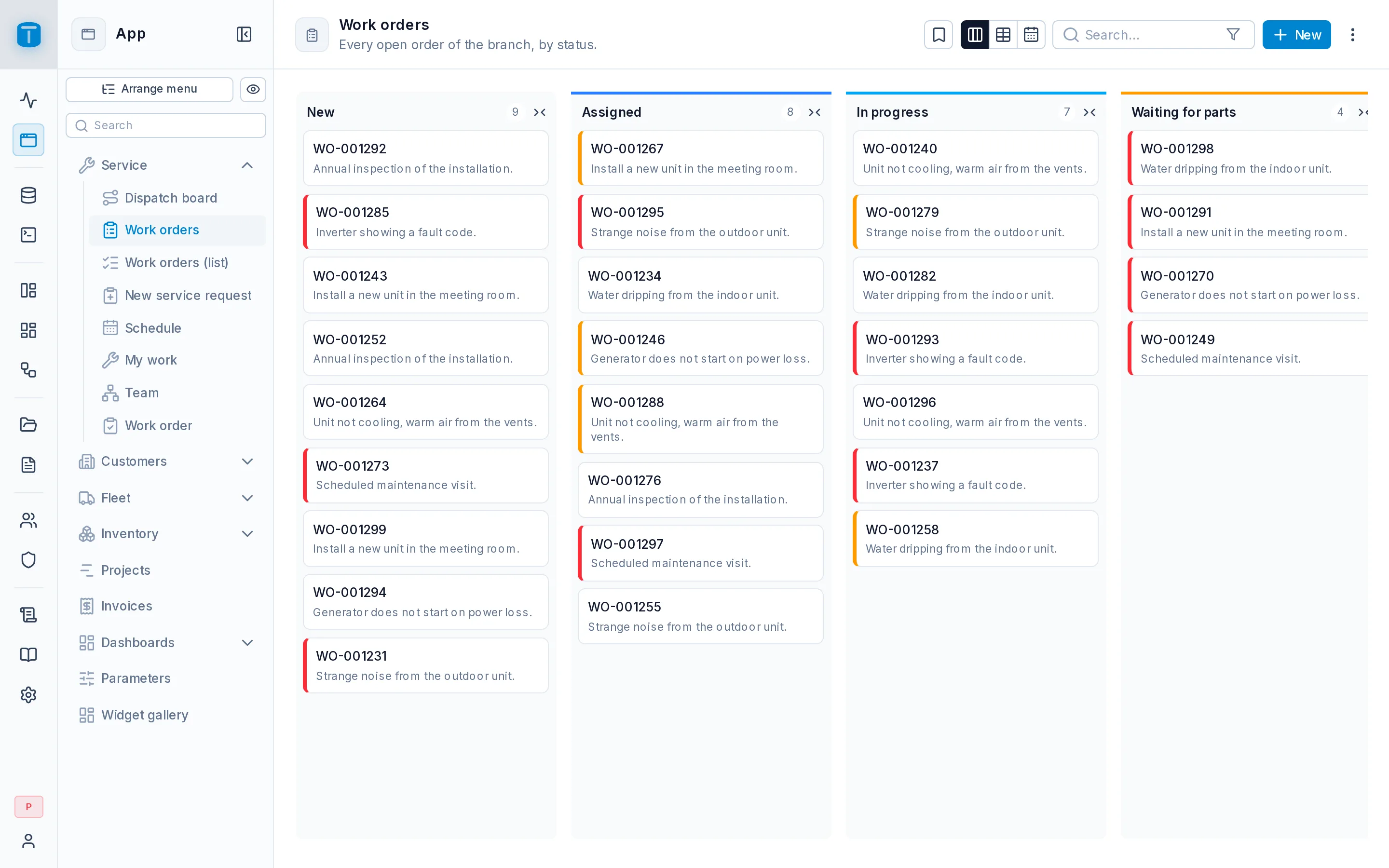
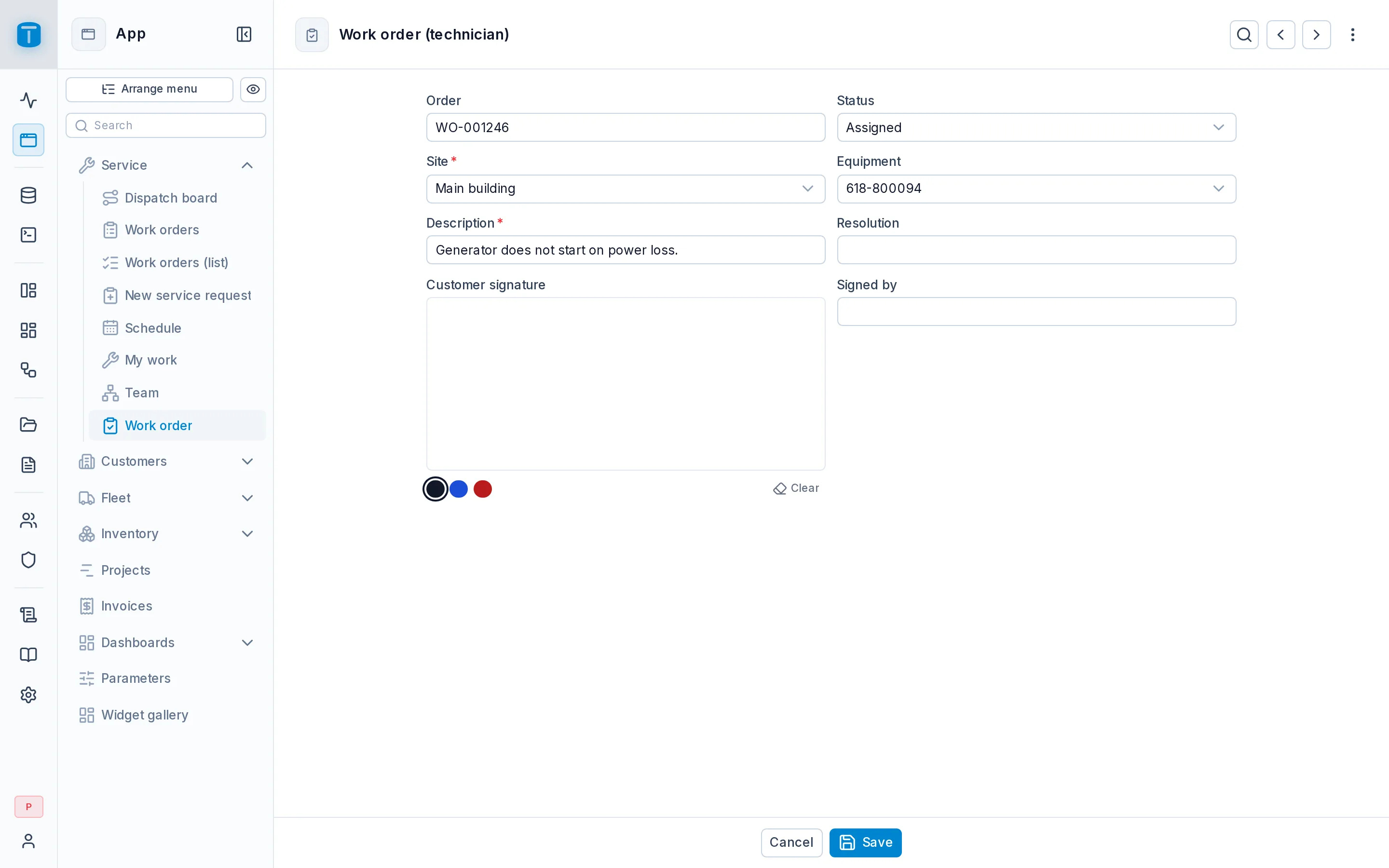
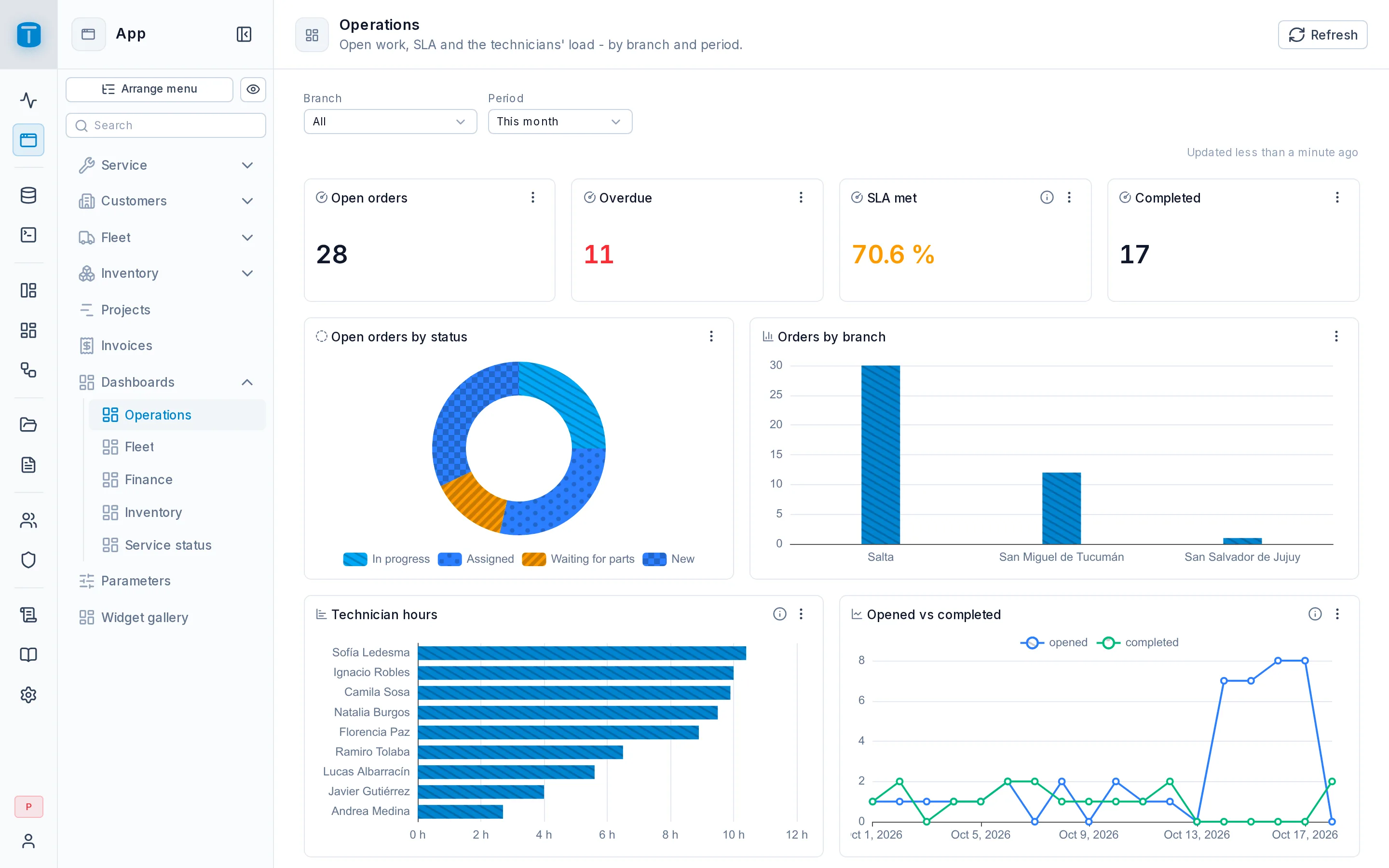
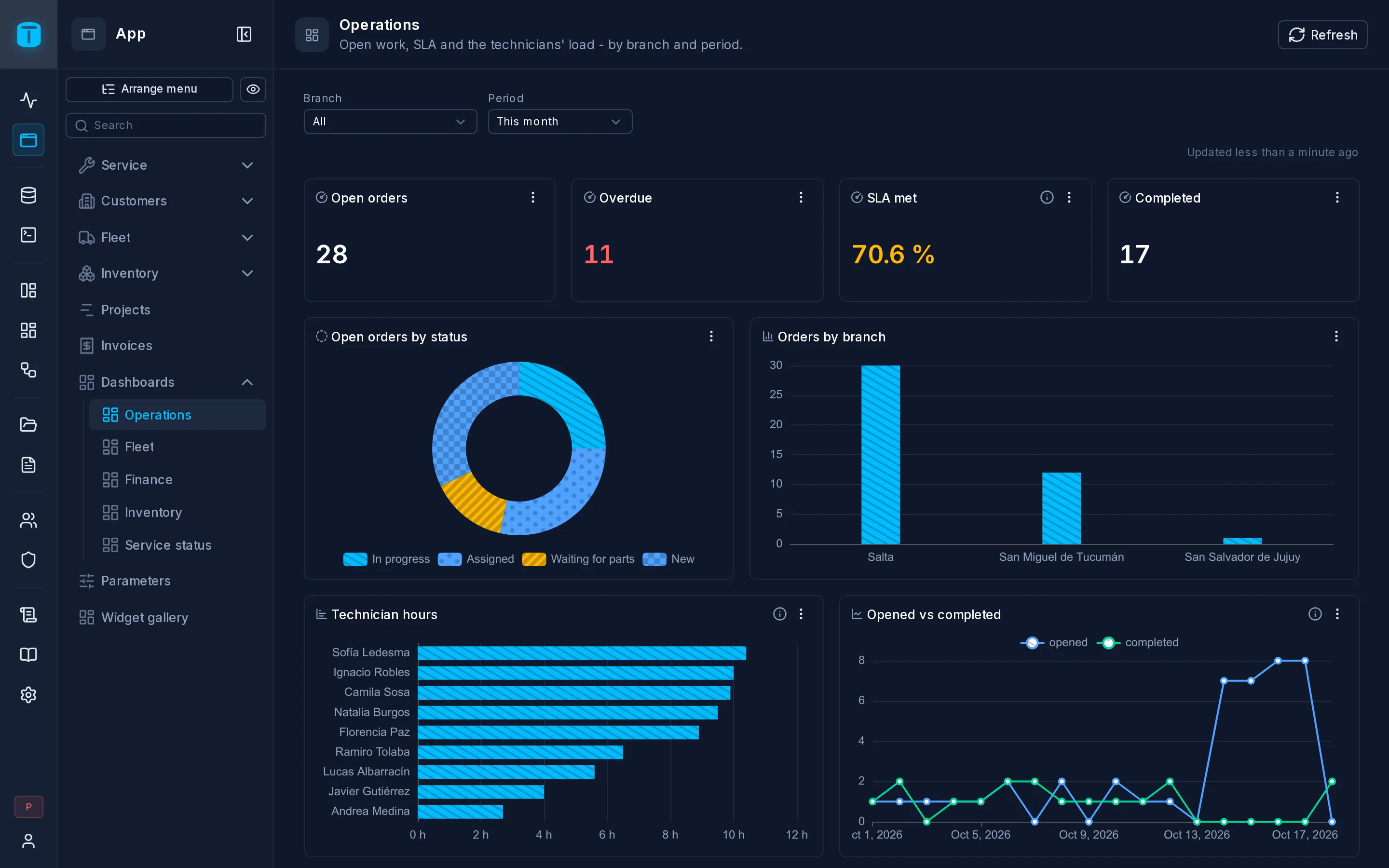
From there you keep going the same way: "add a signature to the technician's form", "email the customer when an order is completed", "dispatchers only see their own branch". Or you open the admin and change things by hand. The agent and you edit the same objects.
Connect an agent
Any MCP client works. These steps use Claude Code.
Turn on the MCP server
In Settings › MCP, turn the server on and choose what agents may do:
| Mode | The agent can |
|---|---|
READ_ONLY | only read: describe tables, list roles, query records |
STANDARD | build and change everything, but never delete or revoke |
FULL | everything, with destructive calls requiring an explicit confirmation |
You can also switch tool groups off (workflows, SQL…) and write project instructions the agent receives on every connection: your naming conventions, your language, what it must never touch.
Do you need the SQL Console?
Not for the prompt on this page. The agent's table tools create tables, columns, foreign keys, CHECK and UNIQUE constraints and indexes, load records through the Data API, and write dashboard queries, all without raw SQL.
Some things can only be written in SQL: views, functions and triggers. Examples are a due date calculated from the customer's contract, stock that goes down when a part is used, or a view of each vehicle's latest position. For those, turn on Settings › SQL Console › Allow API tokens. The SQL tool group in Settings › MCP must be on as well. Without them, the agent gets SQL_CONSOLE_DISABLED and tells you what it couldn't do.
Create a token
The agent acts as you, with an administrator's token. In My account › Tokens, create a token with Admin API access. Copy it; it's shown once.
export TOTALBASE_TOKEN=tb_...
Add the server to Claude Code
Settings › MCP shows the exact command for your instance:
claude mcp add --transport http totalbase https://ops.acme-field.example/mcp \
  --header "Authorization: Bearer $TOTALBASE_TOKEN"
Or as a project's .mcp.json:
{
  "mcpServers": {
    "totalbase": {
      "type": "http",
      "url": "https://ops.acme-field.example/mcp",
      "headers": { "Authorization": "Bearer ${TOTALBASE_TOKEN}" }
    }
  }
}
Describe what you need
Start Claude Code and write your prompt. /mcp lists the totalbase server and its tools.
Why agents get it right
An agent is only as good as what it can learn about the system it works on. TotalBase tells it:
- How to work. On connecting, the agent receives an orientation and a set of guides: the order to build things in, modeling, permissions, the query language, DataViews, dashboards, workflows, PDF templates and errors. The guides are generated from the code, so they always match what the server accepts.
- What exists. Tools describe the real tables, columns, constraints, roles and screens of your instance before the agent changes anything.
- What went wrong. Errors are specific and stable:
CHECK_VIOLATIONwith your constraint's message,FIELD_PERMISSION_DENIEDnaming the field. The agent corrects itself instead of guessing. - The rules stay in PostgreSQL. A constraint or trigger the agent creates holds for every writer, including the agent itself.
This documentation is published for agents too: as llms.txt, as one full file, and as its own MCP server. See llms.txt.
You stay in control
- Same rules as everyone. The agent's records go through the Data API, with the same permissions, constraints and guardrails as any user. It can do what its token's user can do, and nothing more.
- Everything is audited. Every action is in Logs, under your user, marked with the user agent
TotalBase MCP. - Nothing reaches users by itself. The agent builds drafts. Users see a DataView, dashboard or workflow only once it is published, and you can review it first or tell the agent not to publish.
- Raw SQL is off by default. The agent works through structured tools. Running SQL needs
sql_console.token_access, which only you can turn on in the admin. - The agent can't widen its own limits. MCP settings can only be changed by an administrator signed in to the admin, never with a token.
- Stop it any time. Revoke the token, or turn the MCP server off.
Next steps
- Recipes: a table, permissions, a DataView, a dashboard and a workflow, each from one request, with the calls the agent makes.
- Quickstart by Hand: build the same kind of screen by hand, to see how each piece works.
- MCP server: every tool and setting.
- AI Agents › Tokens.