

Calendar
In the admin: New DataView › Calendar · Settings › Views › Calendar
A Calendar places each row on the day of one of its dates. Use it for anything scheduled: visits, appointments, deliveries, due dates.
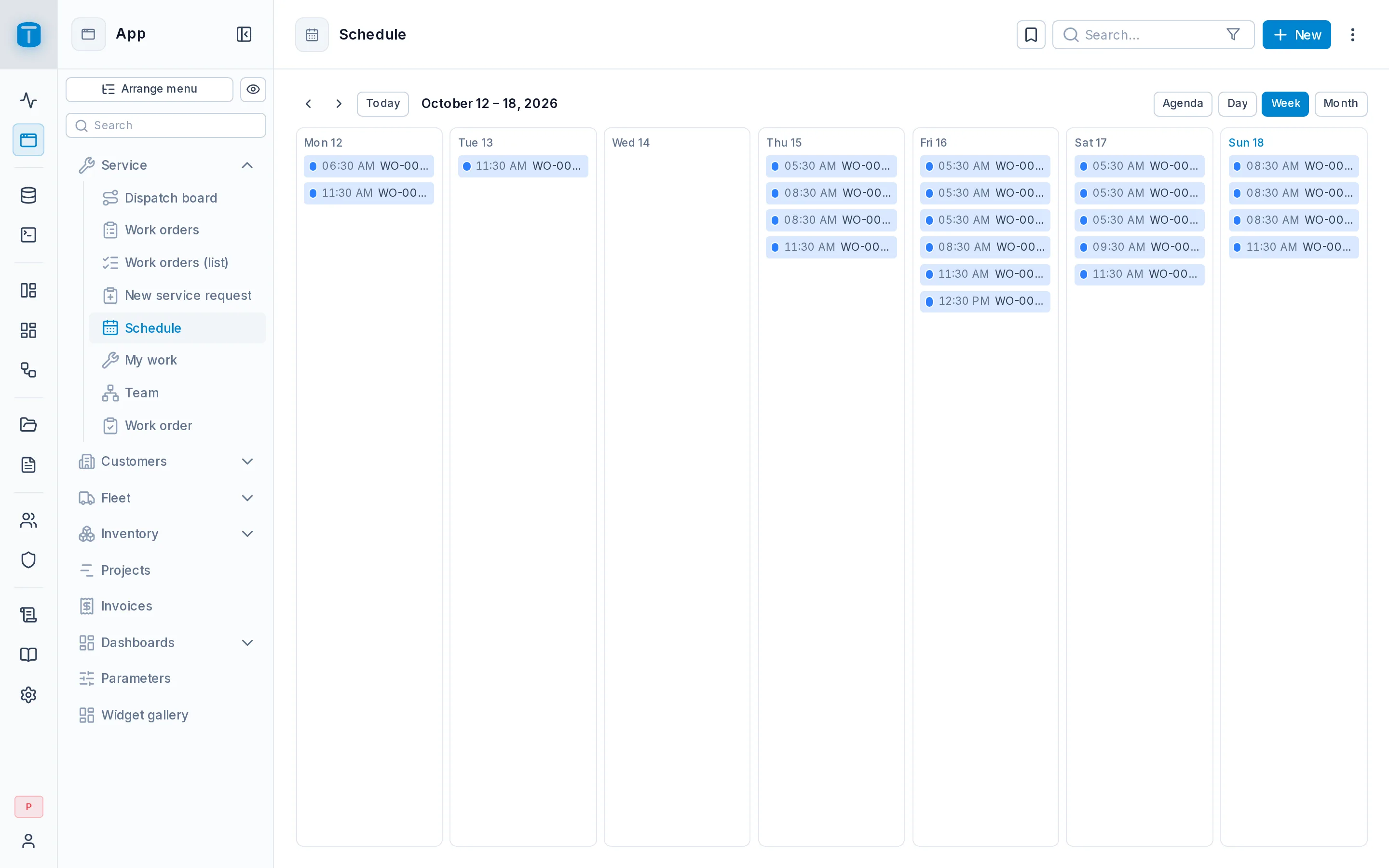
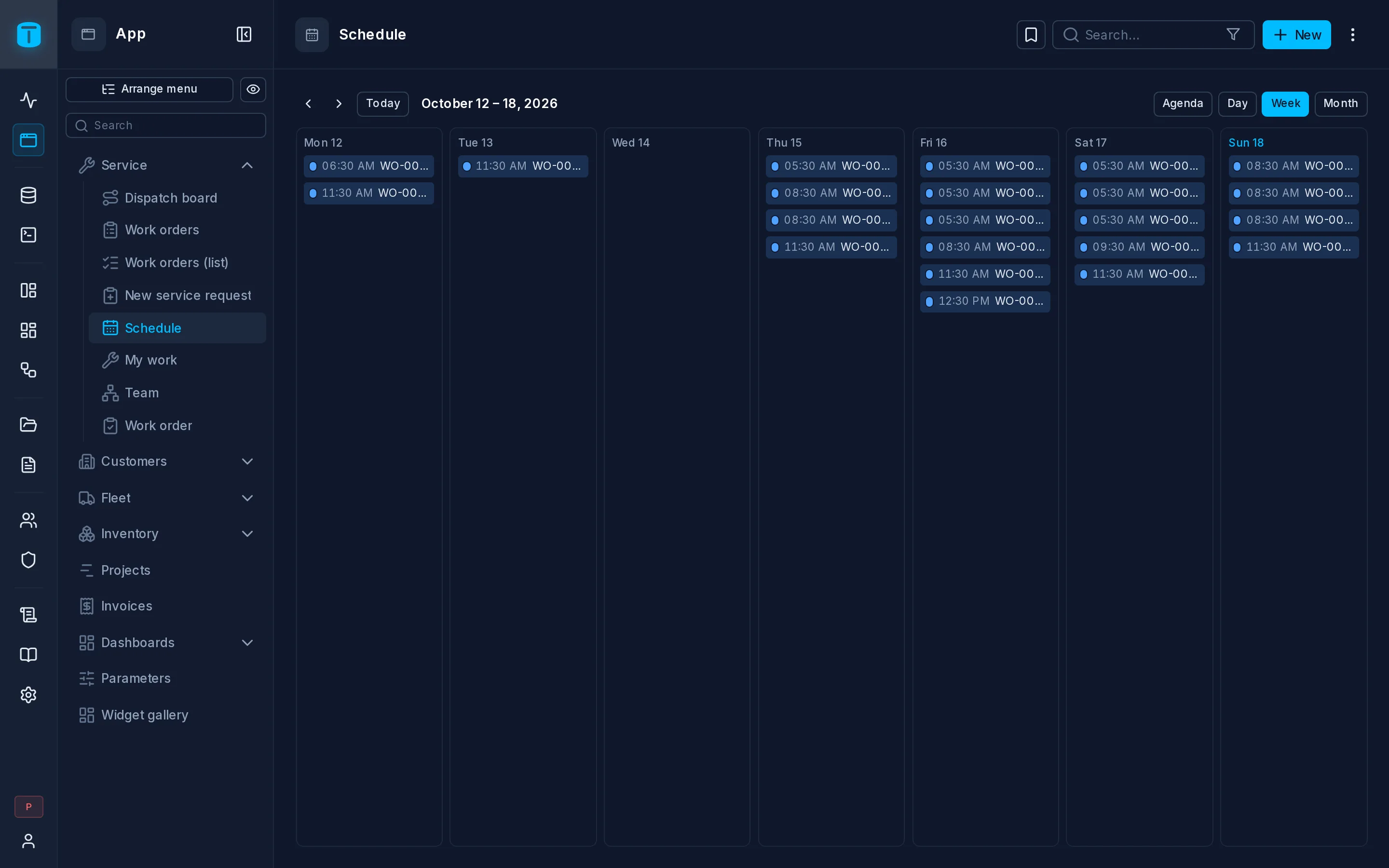
At Acme, Schedule shows every technician visit on the day and hour it's planned, green once the technician has checked in.
What it needs
A date or timestamp column. A calendar uses one date per row; for rows that span a start and an end, use a Gantt.
The layout
| Field | |
|---|---|
| Date | Required. Rows are placed on the day this column falls on |
| Event title | Required. The event's headline |
| Event description | Optional, shown when the event is opened |
| Color | Optional, a color per row |
| Default event color | Used when there's no Color, or it's empty |
| Week starts on | Sunday or Monday |
| Default view | Month (the default), Week, Day or Agenda |
Title, description and color take a column or a formula. Acme colors visits with IF(ISBLANK({{check_in_at}}), "sky", "green"), a palette color.
What users can do
- Switch between Month, Week, Day and Agenda. Agenda lists a month's events, past days included. On a phone, Month opens as Agenda.
- Drag an event to another day to reschedule it. The row is updated through the Data API, where the user may update it.
- Click an empty day or hour to create a row with that date already filled in.
- Open an event to see its record, and in Day and Agenda, download it as an
.icsfile for their own calendar.
The calendar reads only the rows in the visible range, so moving to another month reads that month.
Limits
Up to 500 events in the visible range (dataviews.calendar_max_events, in Settings › Features › DataViews).
Next steps
- Gantt: rows between two dates.
- Settings › Views: offer the same rows as a table too.