

Overview
In the admin: DataViews
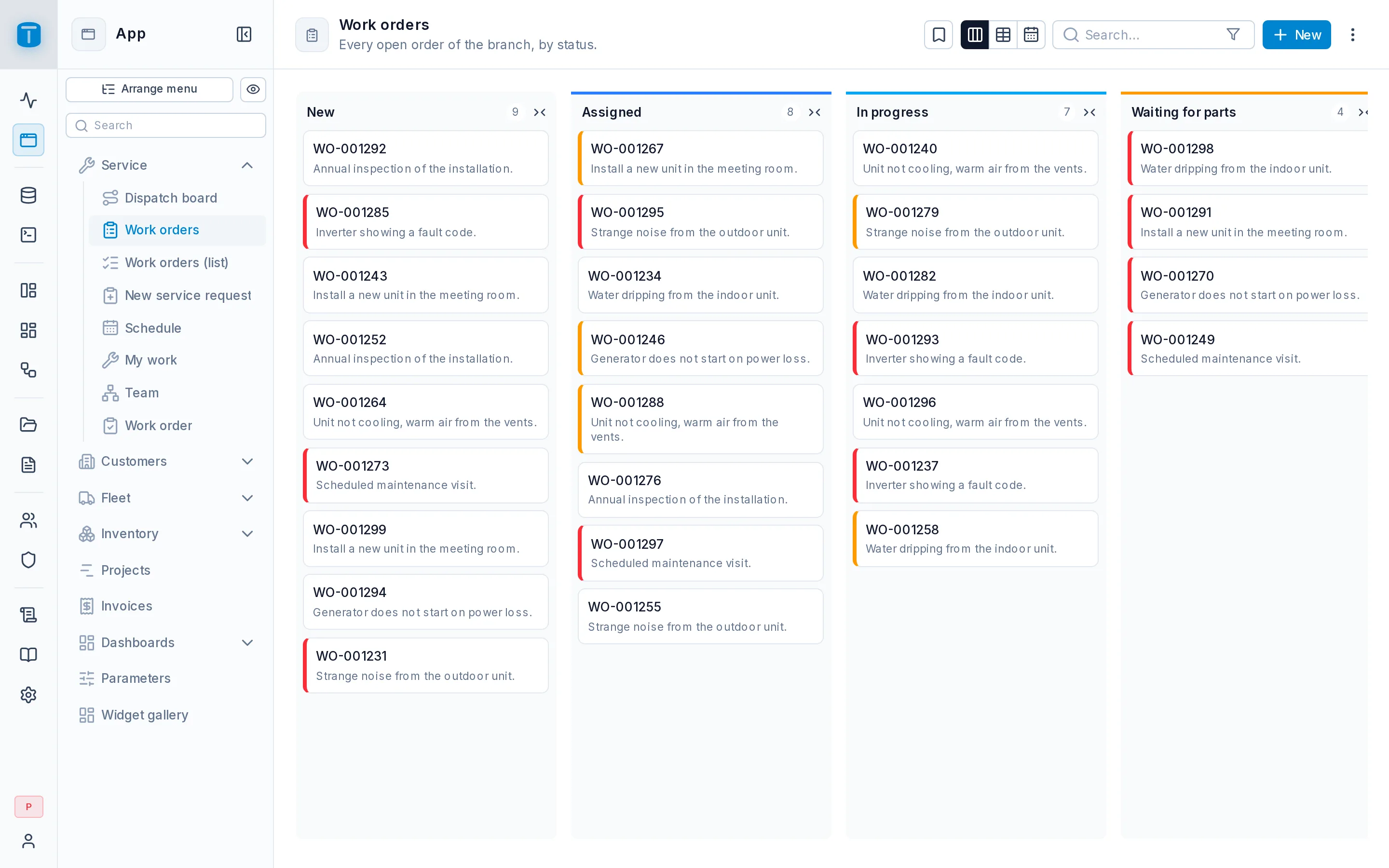
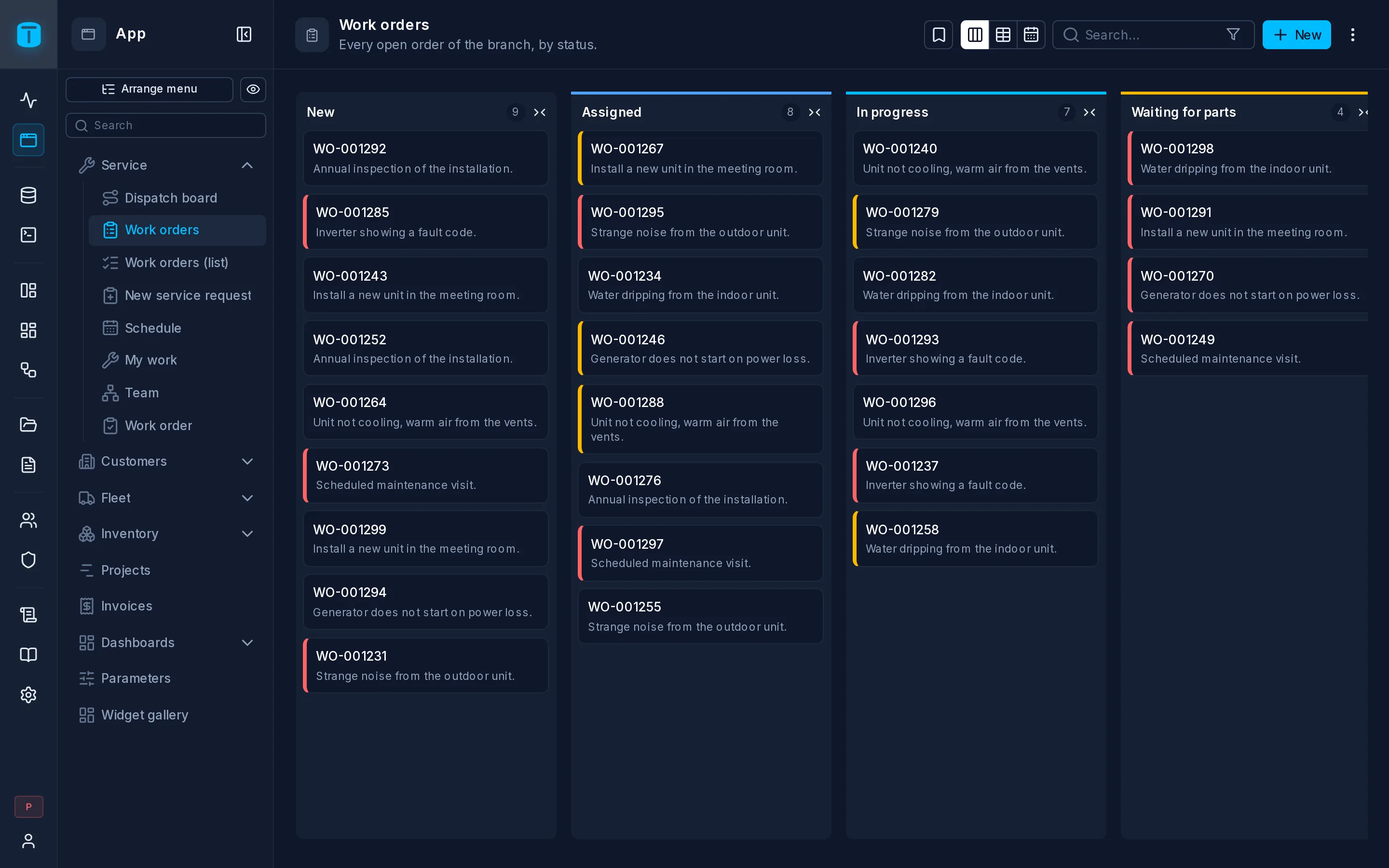
A DataView is a screen over your data: a grid of work orders, a kanban board by status, a map of sites, a form a technician fills on a phone. You build it in the admin, without writing a backend, and your users open the published version in the App.
Types
The type is what you pick first in New DataView. The wizard groups them by what they're for:
| Group | Type | What users get | At Acme |
|---|---|---|---|
| See and work with many rows | Table | a sortable, searchable grid | Invoices, Stock |
| Cards | rows as cards, with an image | Equipment, with its photo | |
| Kanban | cards in lanes by a status | Work orders by status | |
| Calendar | rows on a calendar by a date | Technicians' visits | |
| Gantt | bars between a start and an end date | Installation projects | |
| Map | rows as pins | Sites; the live fleet map | |
| Tree | each row under its parent | Customer groups and subsidiaries | |
| Enter or edit one record | Form | one record at a time | A technician closing an order |
| Master-detail | a new record with its detail rows | A quote and its items | |
| Settings | a parameter table edited in place | Company parameters such as the default tax rate | |
| Pages of your own | Custom | a page built from widgets, variables and code | The dispatch board |
| External frame | an external https page inside the App | A supplier's portal |
The list types can be combined: one DataView can offer the same work orders as a table, a kanban and a calendar, and the viewer switches between them. See Settings › Views.
How a DataView is made
Most DataViews have three parts:
- A source: the table or view it reads. Views are always read-only in a DataView.
- Columns: which of the source's columns the DataView reads and shows. How each column looks (its label, format, colors) comes from the table, set once in Database and used by every DataView.
- A main view and a record form: a list type shows its rows as a grid, cards, a board, and so on; clicking a row opens its record form to edit it. Form and Master-detail are only a record form. Over a view, a list has no record form: a DataView never writes to a view.
Every record form is a page you can redesign in the Design form, with the same widgets, variables and code a Custom page uses. There is one form engine, not one per type.
What a DataView doesn't do
A DataView is presentation, not security:
- Every read and write goes through the Data API, as the viewer. Their permissions, row filters, field grants and payload checks apply exactly as they would to any other client. A dispatcher who opens the Work orders kanban sees only their branch's orders, because that's what the row filter on
work_ordersallows. - Hiding is not denying. Leaving a column out of a DataView, filtering its rows or turning off its Delete button hides things from that screen, not from the API. To keep data from a role, use permissions.
- PostgreSQL still decides. Required fields, defaults,
CHECKconstraints and foreign keys are read live from the database. A form anticipates them, and PostgreSQL has the last word when the record is saved.
From draft to the App
- Create it with the wizard: Creating a DataView.
- Adjust it in its Settings and, if you need to, lay out its form in the Design form. Every change is saved to the draft as you make it.
- Publish it. Users only ever see a published version.
- Grant it to the roles that use it, in Settings › Security. It appears in their App menu.
See Publishing.
In the admin
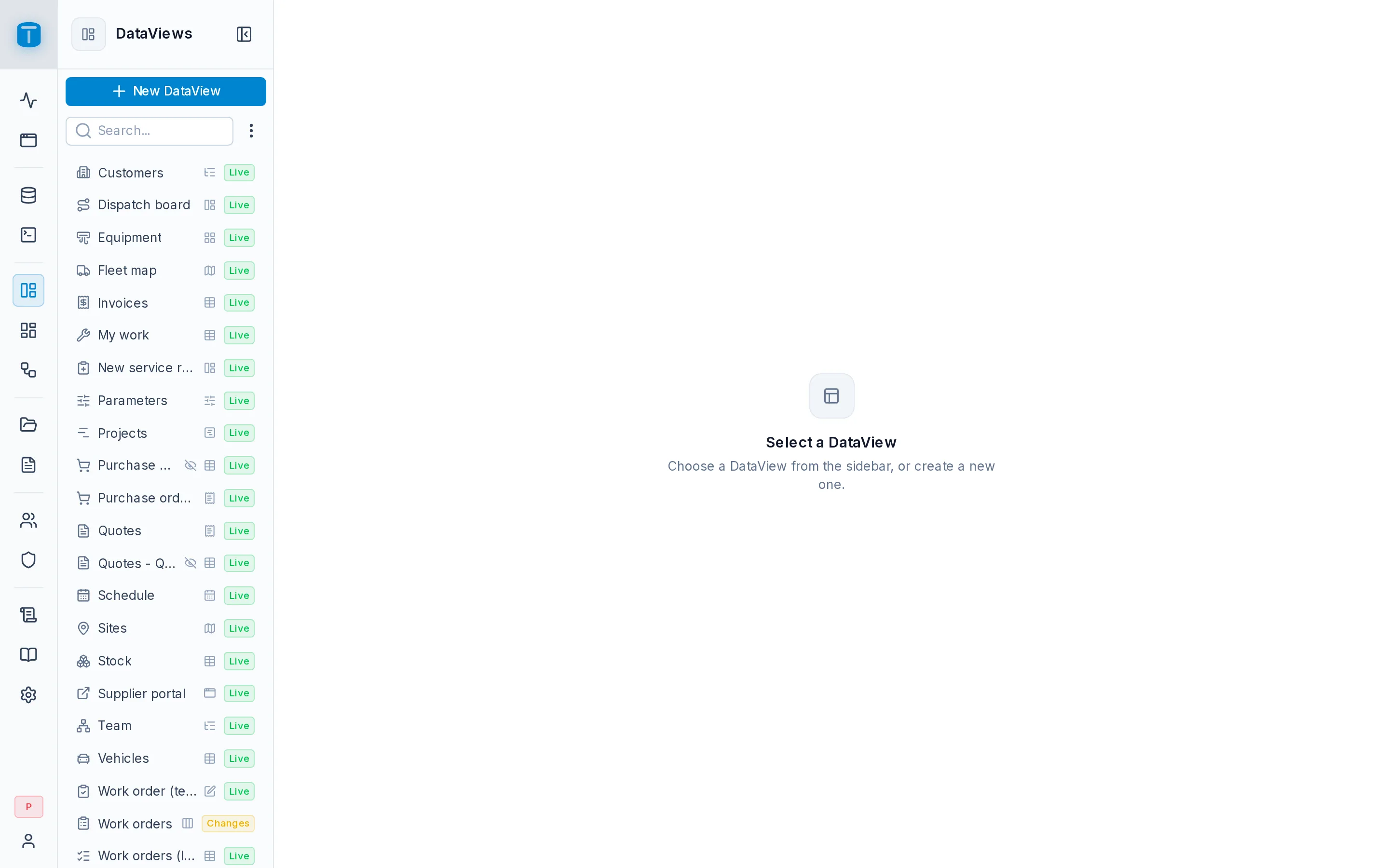
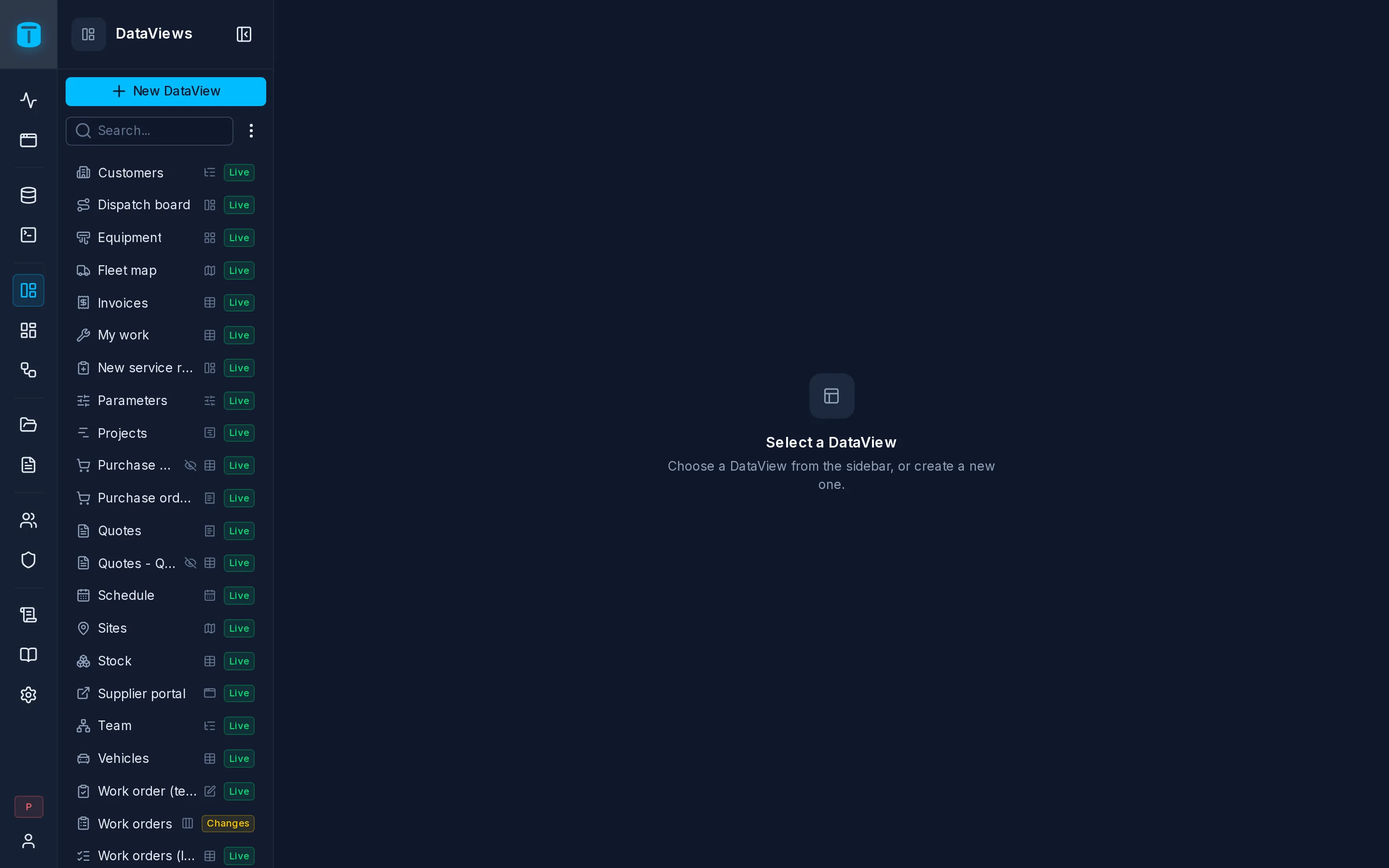
DataViews in the rail lists every DataView, with a search box, a filter by type and New DataView. Each one shows:
| Mark | Means |
|---|---|
| Live | published, and the draft equals the live version |
| Changes | published, with unpublished changes in the draft |
| Draft | never published: no user sees it yet |
| crossed-out eye | not in the App menu; it still works where it's embedded and by its link |
| error icon | it names a column or a source that's gone (renamed or dropped outside TotalBase); the tooltip says what |
Clicking a DataView opens its settings.
Building and designing DataViews is for administrators. Agents build them the same way through the MCP server, with create_dataview, update_dataview and publish_dataview.
Next steps
- Creating a DataView: the wizard, step by step.
- Types: each type in detail.
- Drafts and publishing.