

Object Access
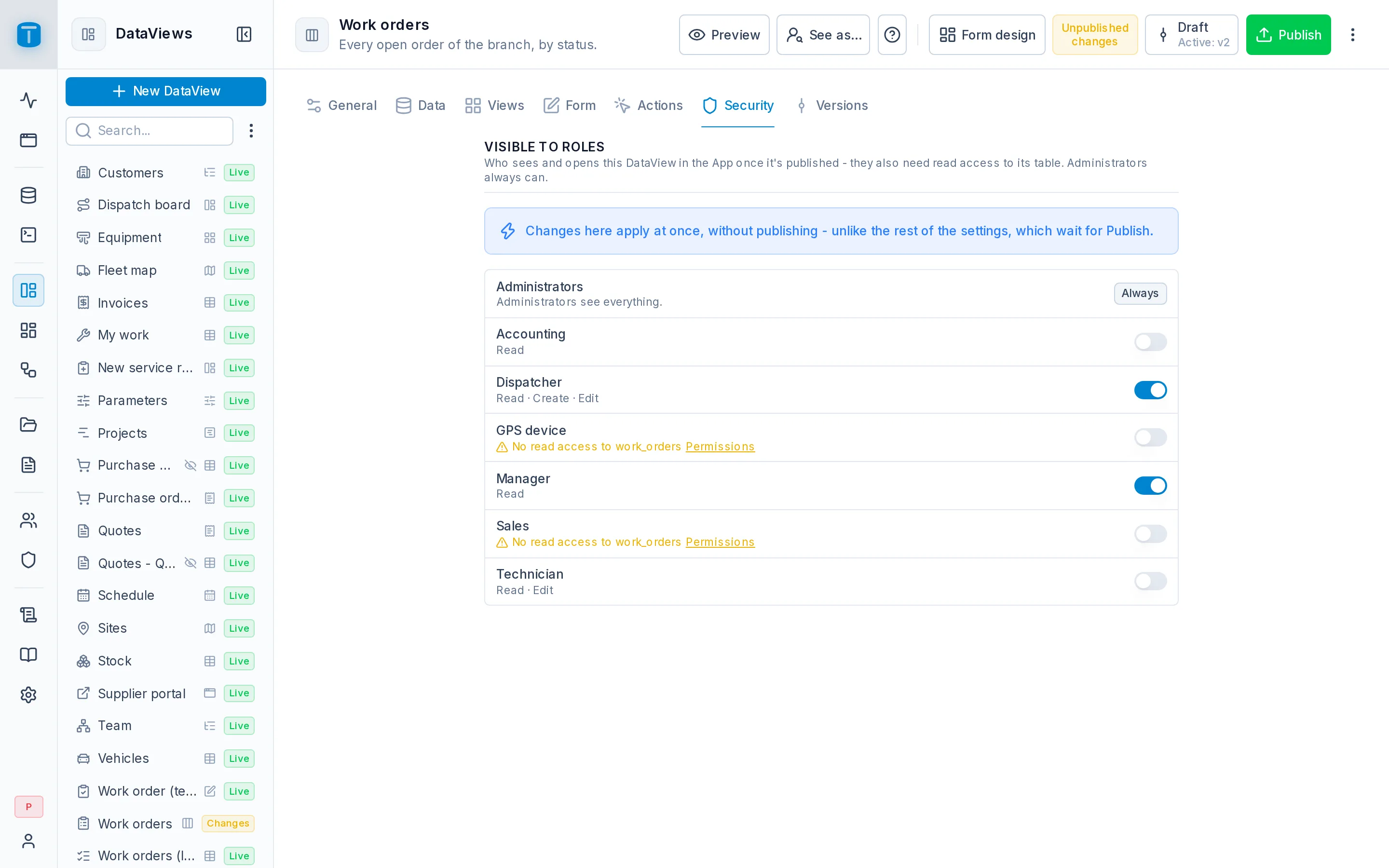
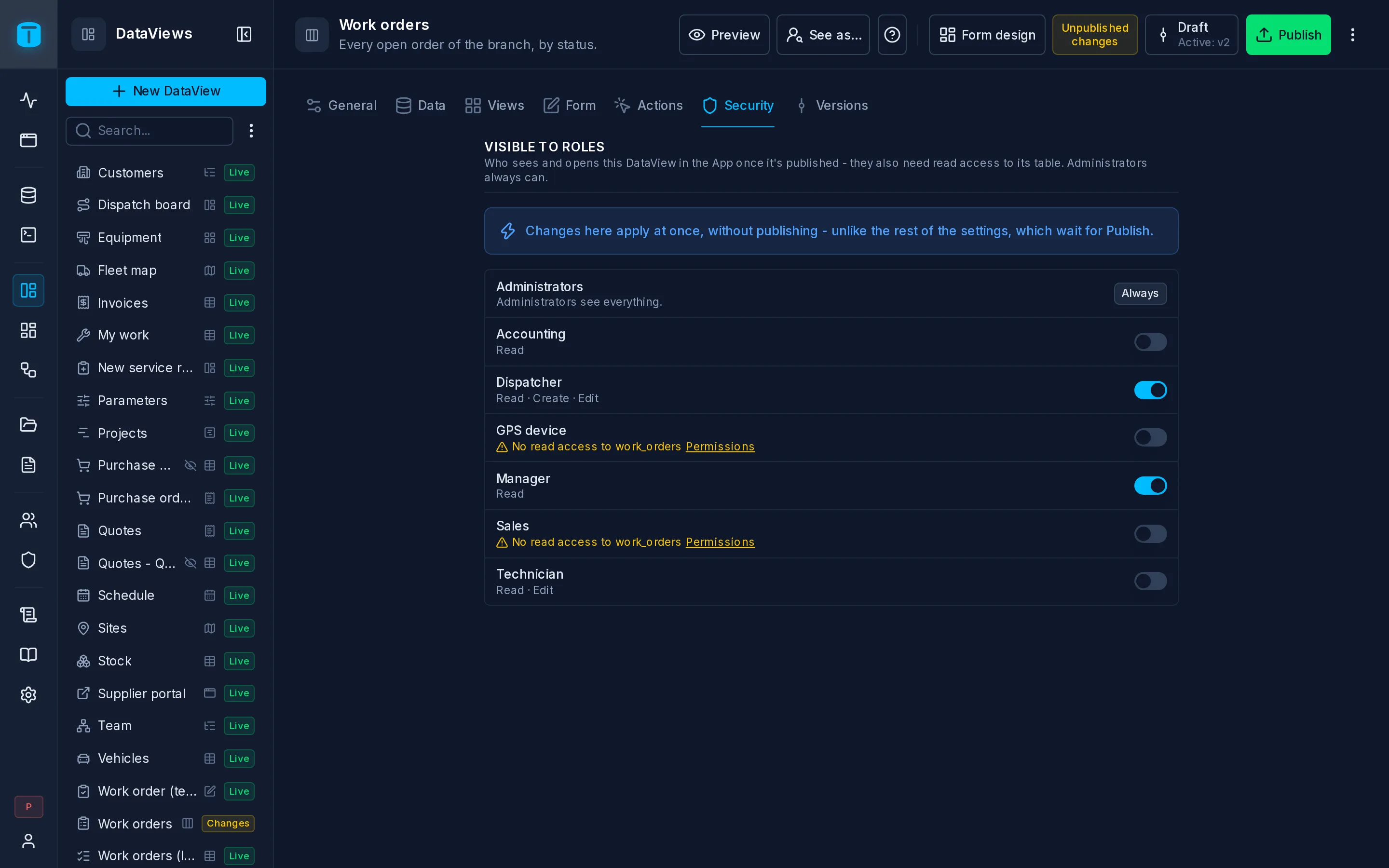
In the admin: a DataView, Dashboard or Workflow › Settings › Security
Permissions on tables decide what data a role may read and write. Object access is a second, separate level. It decides which roles may open a published DataView or Dashboard, or invoke a Workflow.
| Level | Decides | Set in |
|---|---|---|
| 1. Data permissions | which rows and fields a role may read, create, update, delete or execute | Roles › role › Permissions |
| 2. Object access | which roles may open a DataView or Dashboard, or run a Workflow | the object's Security section |
Object access opens a door; it never grants data. A role that can open the Work orders DataView still needs READ on work_orders, and every row it shows and every edit it makes still goes through level 1.
DataViews
A DataView appears in a user's App when both of these are true:
- one of their roles is granted the DataView (its Security section);
- they can read the DataView's source table.
What the screen offers follows level 1 too. New appears only if they may create rows, editing only if they may update, and Delete only if they may delete. Their row filters decide which rows they see.
Acme publishes Work orders (kanban) to Dispatchers and Managers. Both see the same screen, but a Salta dispatcher sees only Salta's orders, because of the row filter on work_orders.
A DataView a user may not open answers as if it didn't exist. Users can't find out which DataViews there are.
Dashboards
A Dashboard opens for the roles granted it, and its widgets then run with the dashboard's authority, not the viewer's permissions. Row filters and field grants don't apply to a dashboard's queries. The person who publishes a dashboard decides what it shows.
That makes a dashboard a report: Acme's Finance dashboard shows revenue by customer to Accounting, though Accounting can't read every table its queries touch. It also means a dashboard must filter for its viewer explicitly when it needs to, with $USER.* variables in its SQL. See Dashboard variables.
Workflows
Running a workflow by hand, from the App or from a button in a DataView requires its invoke grant, set in the workflow's Security section. The run itself acts as the workflow's execute as user, whose permissions decide what it may read and write, not the permissions of the person who started it.
Defaults
- A new DataView or Dashboard has no roles: only administrators see it.
- Administrators bypass both levels.
- Access grants apply at once, without publishing. What the role then sees is the live published version.
Showing in the App menu
Every published DataView and Dashboard has a place in the App's menu, which administrators arrange in the App itself. Show in the App menu (in its settings) can be turned off for an object that only makes sense inside another, such as a customer statement embedded in the customer's form. That hides it from the menu; it doesn't grant or deny anything.
A role can also have an App home, the DataView or Dashboard its members land on when they open the App, set in the role's General section.
Next steps
- Drafts and publishing.
- Publishing.
- Embeds: showing a dashboard to people without an account.