

Granting Permissions
In the admin: Roles › a role › Permissions
This page walks through giving Acme's Dispatcher role what it needs. The model behind it (DENY over ALLOW, fields, row filters) is explained in Permissions.
Before granting anything, make sure the resources are exposed. A permission on a method that isn't exposed has no effect.
grant_permissions with the actions, the row filter and the fields. See Recipes › Permissions for a role.The matrix
Open Roles › Dispatcher › Permissions. The Schema select at the top shows one schema at a time, public first; your tables are there, TotalBase's own are under totalbase. Each row is a resource, and each column is an action that applies to it: CREATE, READ, UPDATE, DELETE for tables, READ for views, EXECUTE for functions. A cell shows the grant: allowed, denied, allowed with a row filter, or with payload checks.
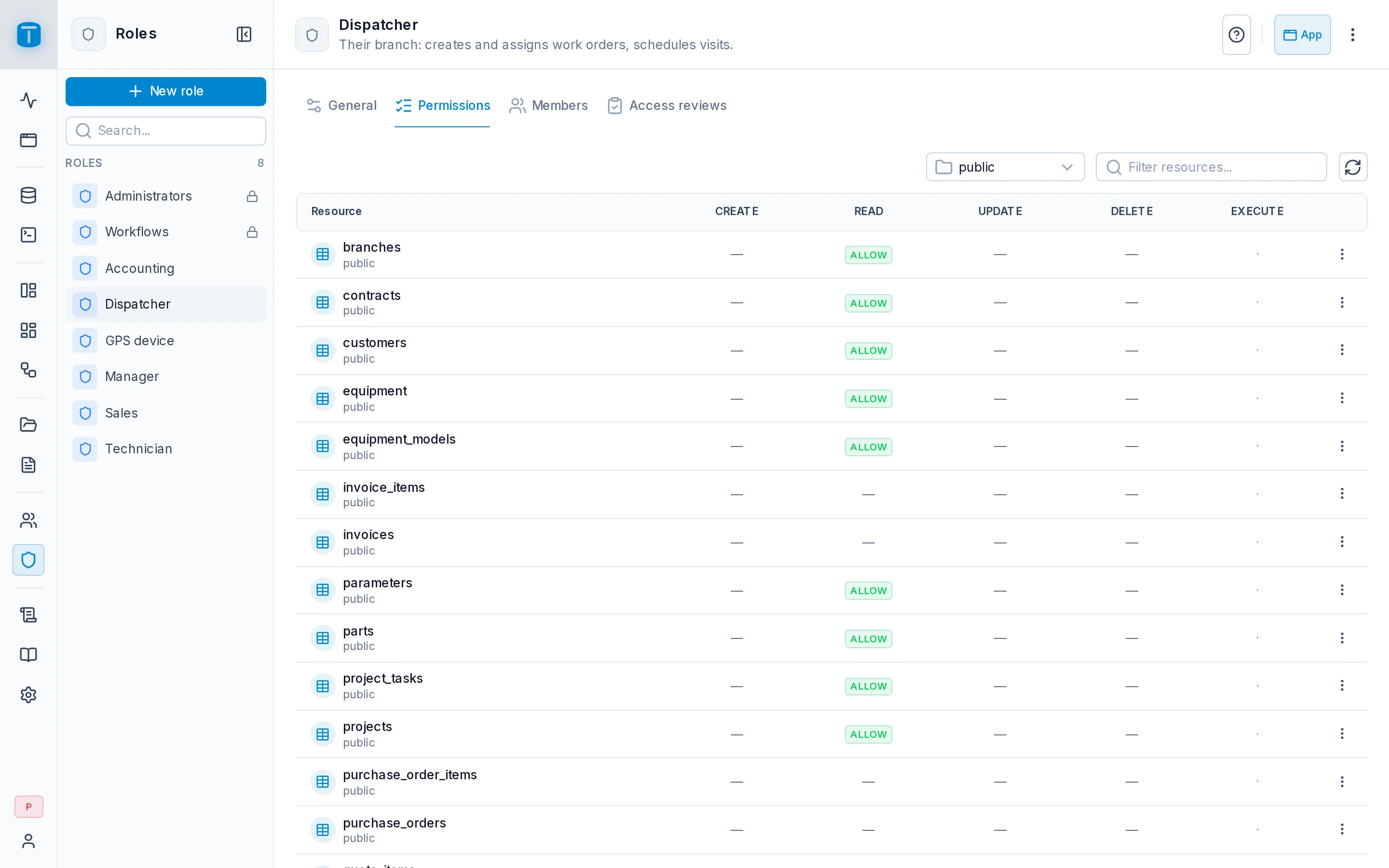
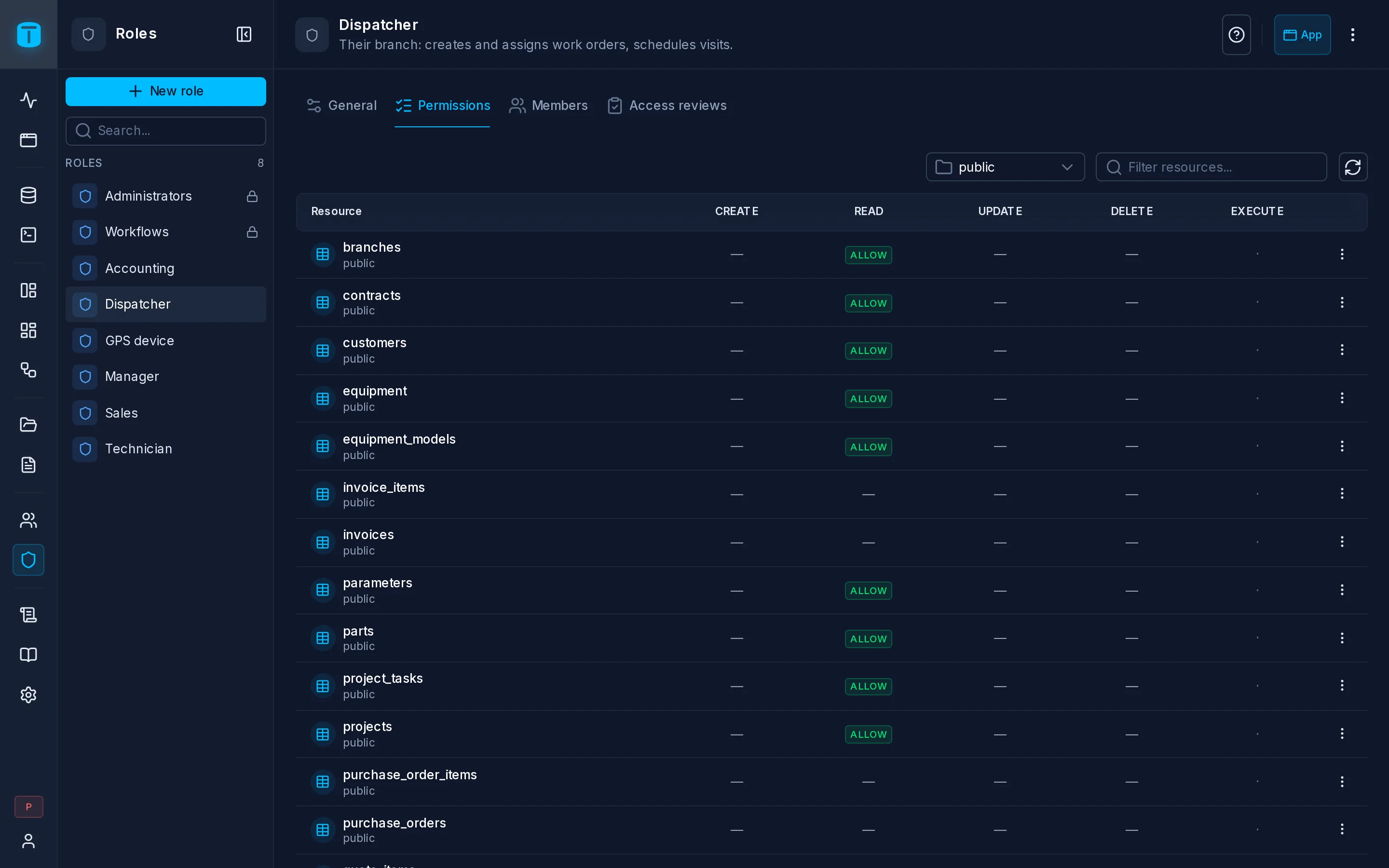
Click a cell to open its grant in a side panel, with the matrix still visible. At the top, Effect: Allow or Deny, and Clear grant to remove it. Below, four tabs:
| Tab | Sets |
|---|---|
| Allow / Deny | The effect, and the fields the role may use |
| Row filter | Which rows: Row filters |
| Payload checks | Rules on the values written, for create and update: Payload checks |
| Variables | The $ variables filters can use, for reference |
A row's ⋮ gives shortcuts for that resource: Allow all actions, Read only, Clear all grants. Apply Default Permissions, in the toolbar, adds the usual grants on TotalBase's own tables (users can see their profile, upload and read files…); see Creating a role.
A role with Admin access has no matrix: it bypasses every permission.
Granting a read
Dispatchers read work orders. Open the work_orders × READ cell, choose Allow, and tick the fields:
- the columns they need:
number,type,priority,status,reported_at,due_at,description,site,technician,branch; - the relation paths their screens show:
site.name,site.customer.name,technician.user.name.
Every field is granted explicitly. A column added to work_orders next month stays invisible to Dispatchers until you tick it.
A relation path is granted here, on work_orders, not on sites or customers. A dispatcher can see an order's customer name without being able to list customers.
work_orders that shows site.name needs that path granted, or the role sees the raw key. The DataView's settings warn when a role that can open it is missing such a path.Granting writes
Dispatchers create orders and assign them. Grant:
CREATEonwork_orders, with the fields they fill in:type,priority,site,equipment,branch,description;UPDATEonwork_orders, with the fields they change:priority,status,technician,description.
Don't grant DELETE. Acme cancels orders instead, so the matrix leaves that cell empty, which means denied.
Fields that PostgreSQL fills in (id, number from a sequence, due_at from a trigger) don't need CREATE. Writing them explicitly would need it.
A write returns only what the role may read. A role with CREATE but no READ gets back just the new row's primary key.
Denying
An explicit Deny overrides every Allow from the user's other roles. Use it for exceptions. For example, if Acme gives some technicians the Dispatcher role during holidays but never wants technicians to change priorities, it can deny the priority field on the Technician role's UPDATE grant. A field can be denied while the action is allowed.
Functions and views
- A view needs
READ, with its fields, like a table. - A function needs
EXECUTE. There are no fields or row filters on a function. What it does is up to PostgreSQL.
Several grants at once
To set up many grants in one step, use the Admin API: PUT /admin/api/roles/{role}/permissions takes a list and applies it in one transaction, all or nothing. The MCP server's tools do the same for an AI agent.
Checking the result
Open a user's Permissions section. It shows what that user can do across all their roles: each decision, the fields that are actually allowed, the row filters and payload checks, and which role contributes each part.
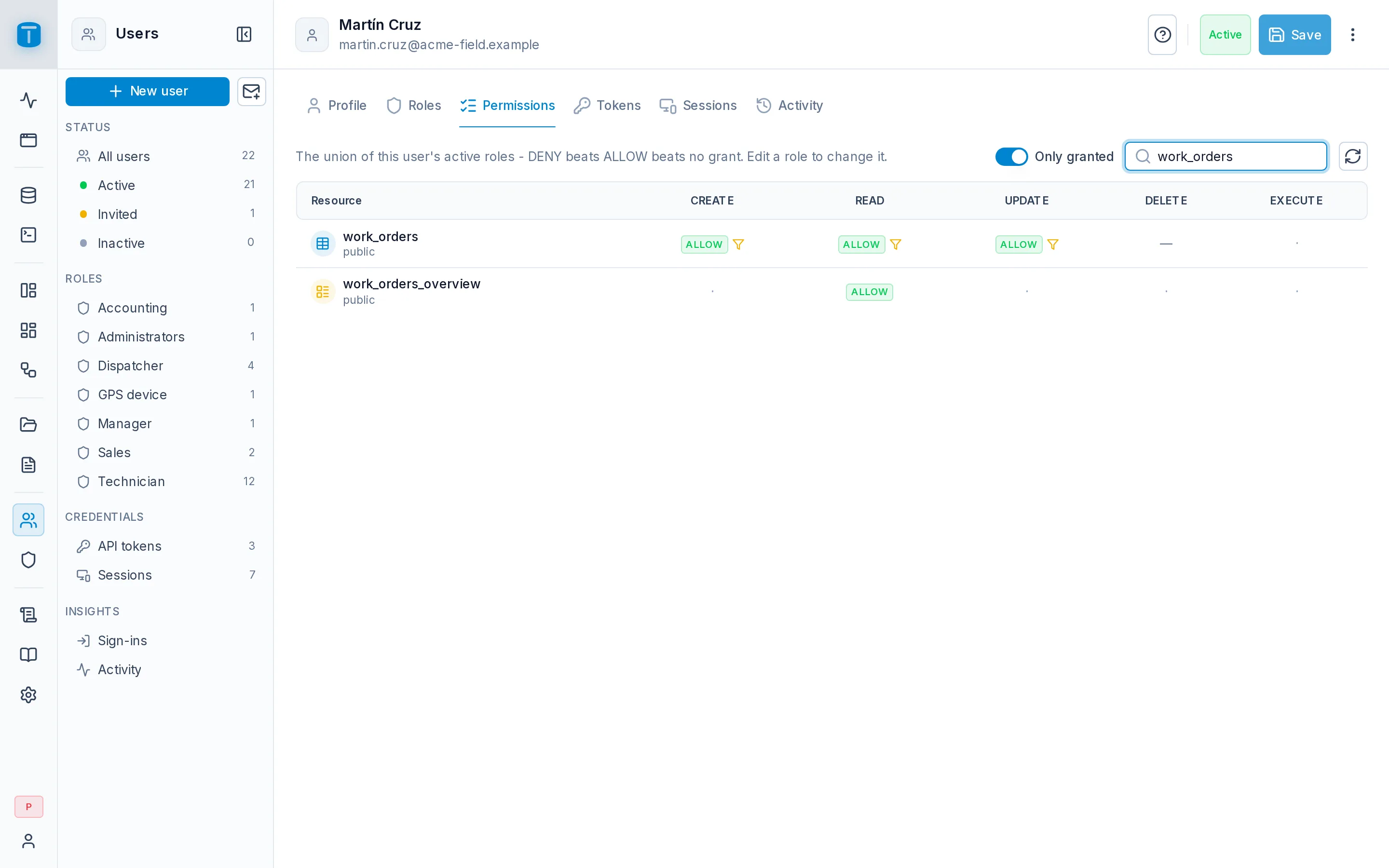
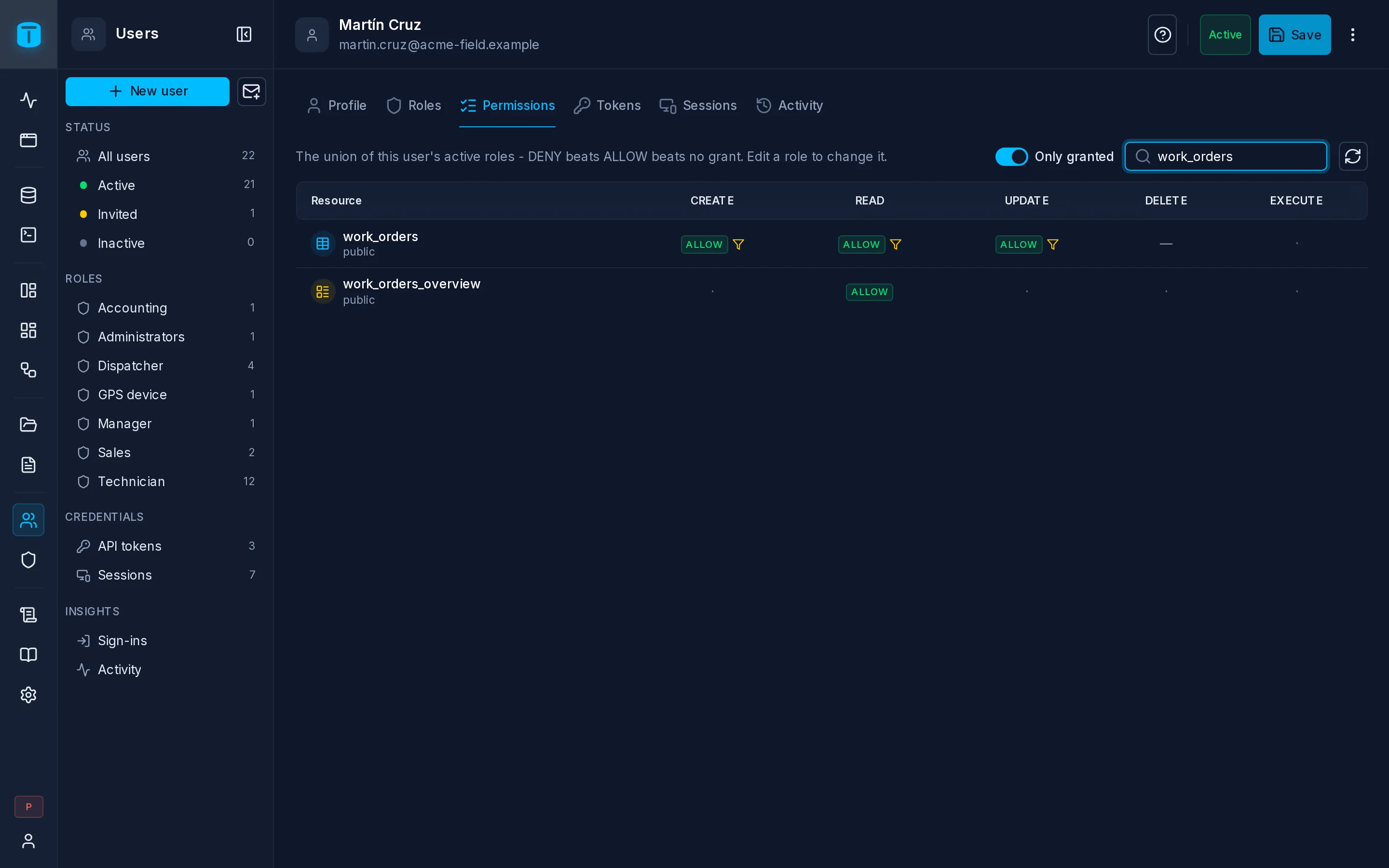
The quickest real test is to sign in as that user, or call the API with their token, and compare what comes back.
Other things a role can be granted
| Grant | Where | Lets the role |
|---|---|---|
| Capabilities: Can run transactions, Can send email | the role's General section | submit POST /api/transactions; run a workflow's Send email step |
| DataView and Dashboard access | the object's Security section | open them in the App: Object access |
| Workflow invoke | the workflow's Security section | run it by hand or from a button |