

Form
In the admin: DataViews › a DataView › Settings › Form
Form decides how a record opens and what can be done with it. It applies to the record form of a list (the form a row opens), to a Form and to a Master-detail.
The form's content, its fields and their layout, is designed in the Design form: Design the form → takes you there.
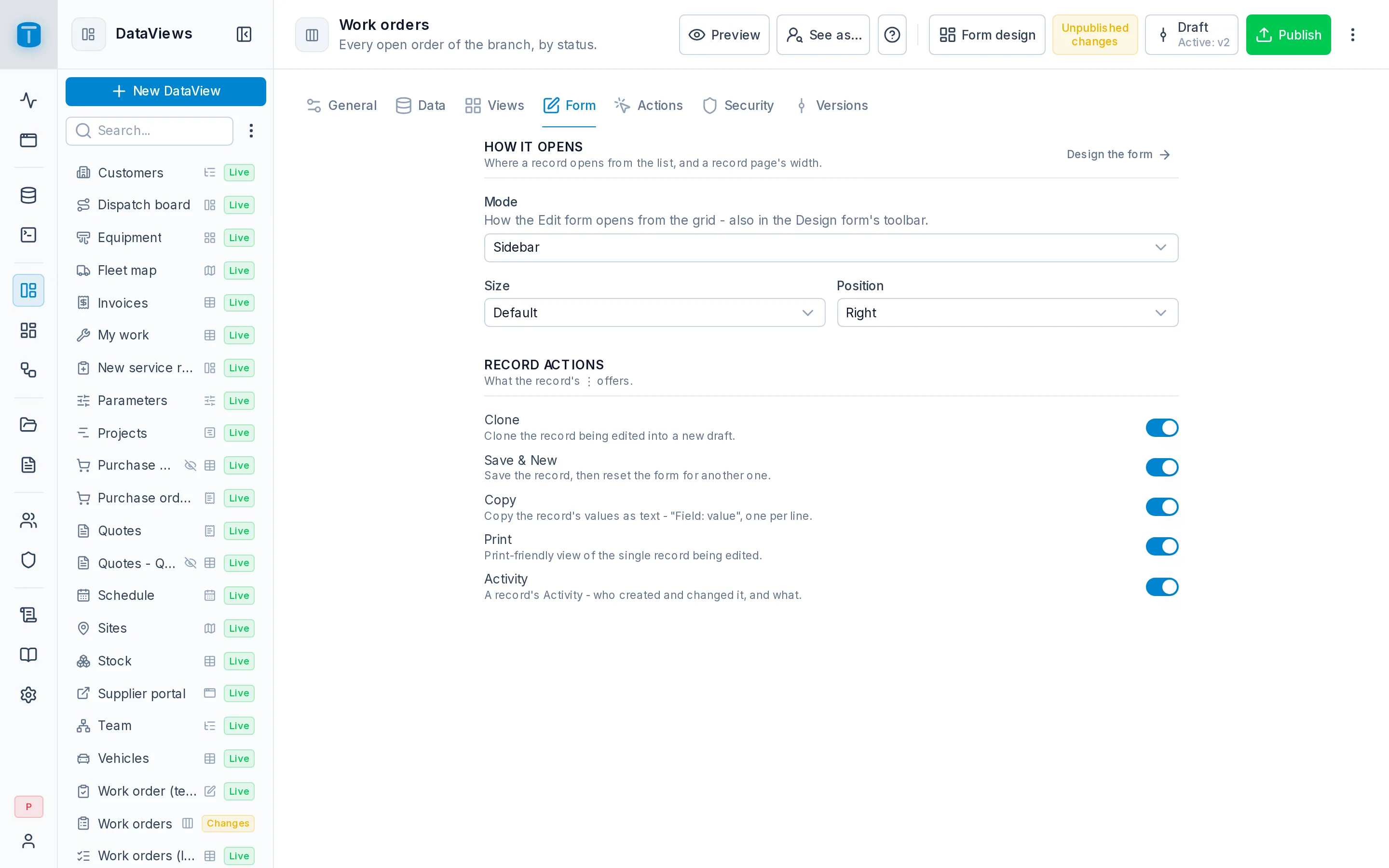
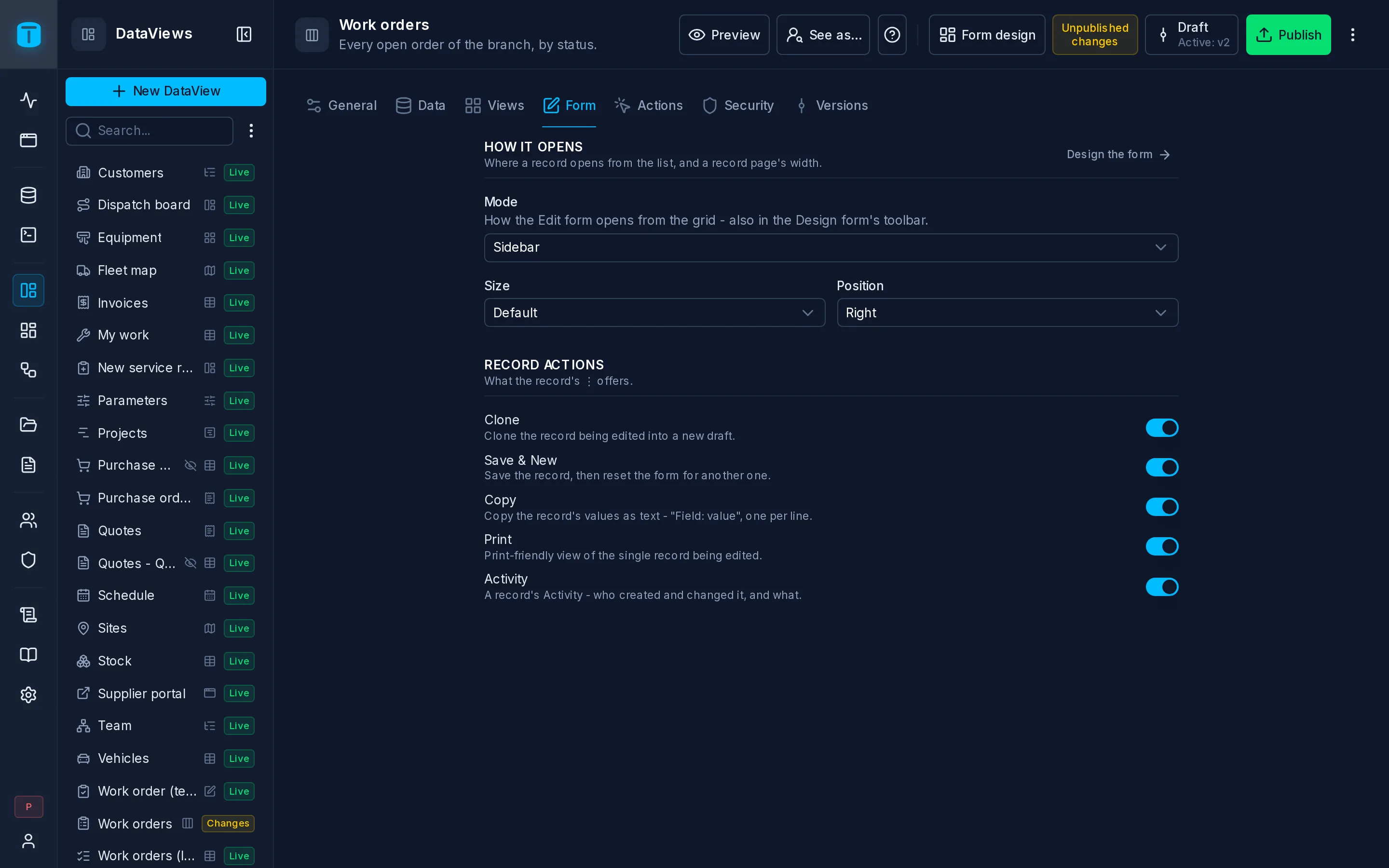
How it opens
From a list
| Mode | |
|---|---|
| Sidebar | Beside the list, which stays in view: the board, the map or the calendar is still there. The default, and right for most forms |
| Modal | A centered dialog, for short forms. Fullscreen on a phone or a tablet |
| Drawer | From the bottom, covering most of the screen, for a heavy form: a rich text editor, tabs, a detail grid |
| Page | Its own address (/admin/app/dataviews/work-orders/<id>/edit), for long forms. It can be bookmarked and shared |
Size sets the width of a Sidebar, a Modal or a Drawer, from sm to xl. Position sets the Sidebar's side.
A form with more than 8 fields in a Sidebar or a Modal usually reads better as a Page; the wizard suggests it.
A Form
Mode: Read, Update, Create or Single record, and whether it has a record Search. See Form.
A Master-detail
On open: New record (a new record right away) or Wait for New (a start screen), and the New button label for the start screen. See Master-detail.
Its page
When the form is a page (a Page, a Form, a Master-detail):
| Option | |
|---|---|
| Content width | How wide the form grows: narrow, wide or full. Default is the instance's, in Settings › Features › DataViews |
| Content align | Where the form sits on a wider page: left, center or right |
| Fit to screen | The form fills the page instead of scrolling it: the row holding a widget with Fill height, such as a detail grid, takes the height left and scrolls inside. Ignored on a phone or a tablet |
Record actions
What the record's ⋮ offers. Each one can be turned off:
| Action | |
|---|---|
| Clone | Opens a new record with this one's values, to save as another. Needs Allow › Create |
| Save & New | Saves, then opens a blank form for the next one. Needs Allow › Create |
| Copy | Copies the record as text, one Label: value line per field, to paste in an email or a chat |
| A PDF of the record | |
| Activity | The record's history: who created and changed it, and what. Each change reads like a diff, the value before in red and after in green |
| Previous/Next | A Form only: step to the previous or next record |
The record's ⋮ also has Delete, where the user may delete. It's the same menu on each row of a table and each card.
A Form or a Master-detail also has Save and Cancel, the form's own buttons. Turn them off when the page saves through buttons of its own, built in the Design form.
How a record form works
Every record form behaves the same, in any container:
- The header has the title (New · Work orders, Edit · Work orders), Edit for a record shown read-only, and the record's ⋮.
- While editing, Cancel and Save sit at the bottom. In a list's form, both go back to the list.
- Unsaved changes are never lost without asking: closing the form, New, Previous/Next or leaving the page asks first.
- Esc closes a Sidebar, a Modal or a Drawer, asking first if there are unsaved changes.
- Shortcuts:
Ctrl/⌘+Ssaves,Ctrl/⌘+Shift+Ssaves and starts a new one,Ctrl/⌘+Dclones.
What PostgreSQL decides
A form's fields are bound to the table's columns, so it reads the rules from PostgreSQL each time it opens, and never copies them:
- Required means
NOT NULLwithout a default. ANOT NULLcolumn with a default can be left empty on a new record: PostgreSQL fills it. A constant default ('NORMAL',true) is shown as the starting value, and a date defaulting to today starts on today. - A
CHECKlist gives a select its options, with each value's label and icon. - A
CHECKpattern or range (price >= 0,length(code) <= 10, an email's shape) is checked under the field before saving. - Columns PostgreSQL fills (an identity, a generated column, a
uuidkey, acreated_at) aren't shown on a new record, and are read-only after. - Columns the user may not write are read-only for them; columns they may not read aren't shown.
PostgreSQL still decides when the record is saved: a CHECK it refuses shows its message, a UNIQUE violation says which value is taken. See Errors.
Next steps
- Design form: lay out the form's fields.
- Actions: what users may do.