

Actions
In the admin: DataViews › a DataView › Settings › Actions
Actions decides what users can do on a DataView besides looking: create, edit and delete, the buttons of its toolbar, and actions of your own, such as Create invoice on a completed work order.
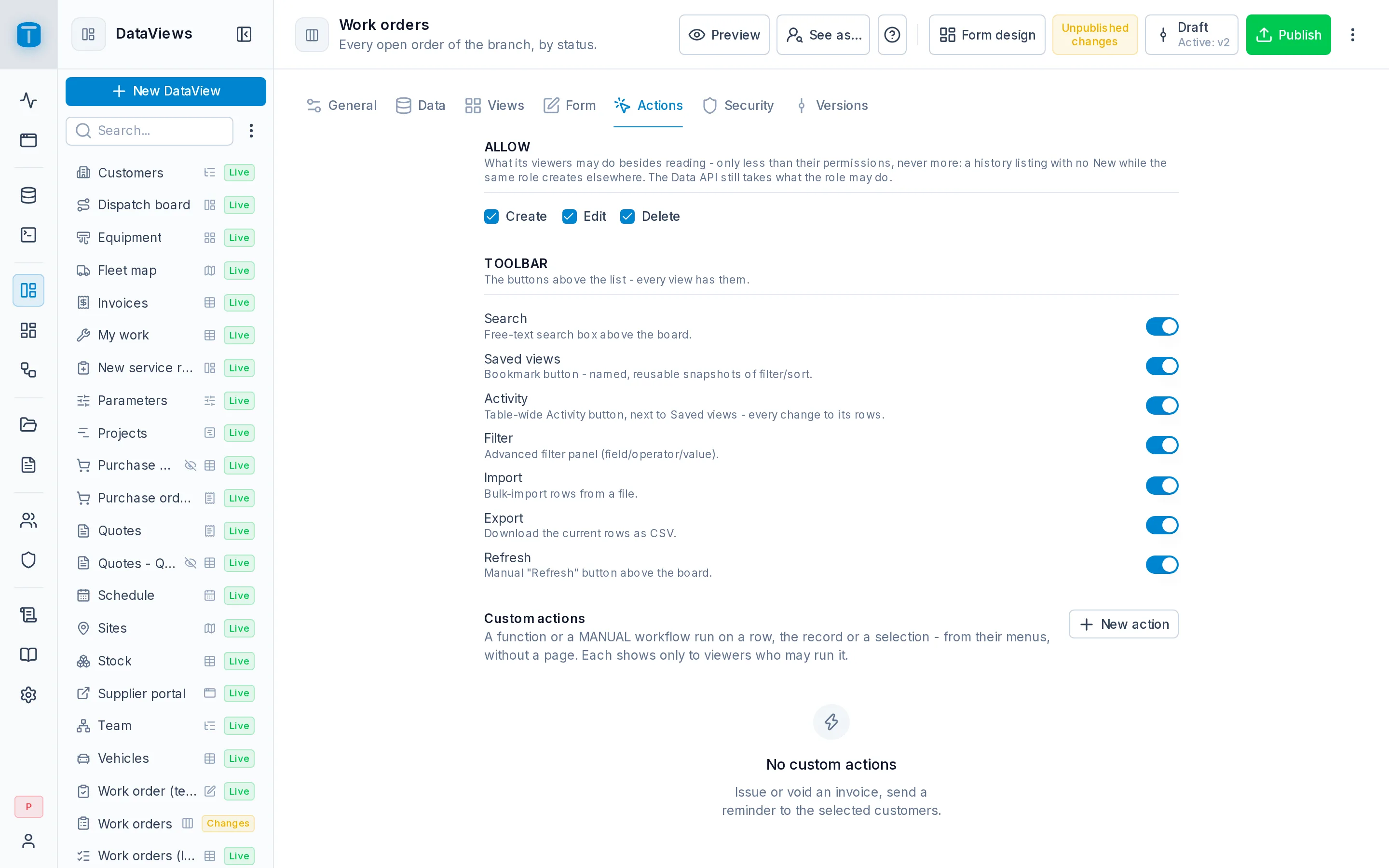
Allow
Allow has three switches: Create, Edit and Delete. All three are on by default.
Allow can only take away. A user can create in a DataView only if Allow has Create and their roles may create rows in its table; it never gives a role more than its permissions. Use it to make a screen narrower than what its users may do elsewhere: Acme's Closed orders is a history with no New and no Edit, while the same dispatchers create and edit orders in Work orders.
The toolbar
The toolbar's functions, each on or off:
| Function | |
|---|---|
| Search | A search box over the DataView's columns |
| Saved views | Named views users save and share |
| Activity | Every change to the DataView's rows |
| Filter | The filter panel |
| Import | Rows from a CSV file. Needs Allow › Create |
| Export | The rows as CSV or Excel |
| Refresh | A refresh button |
A table's Density, Columns and Print are in Views › Table, since only a table has them.
Search
The search box looks in every column the DataView reads, hidden ones included, and in the related column a foreign key shows: searching Güemes finds the orders whose site is on Güemes street. To make a column searchable without showing it, add it and hide it. A date can be typed in the user's own date format.
Filter
The filter panel offers the DataView's columns, each by its title. A foreign key's value is picked from the referenced table's rows, shown by their row display, and a CHECK list's from its values. Each active filter shows as a chip with ✕ to remove it.
A filter only narrows: it's combined with the DataView's own filter and with the user's permissions.
A link can open a DataView already filtered, with ?filter= and a filter in the query language. This is how a dashboard's chart opens the rows behind a bar:
/admin/app/dataviews/work-orders?filter={"priority":{"_eq":"URGENT"}}
Saved views
A saved view is a named state of the list: its view (table, kanban…), filter, columns, sort and density. The toolbar's views button opens:
- Default: the list as the DataView's author set it up;
- My views, each with its share icon and Delete;
- Shared: views others shared with you, with who shared each;
- Save current view…: a name, and what's on screen is saved. A name you already used asks Replace it?.
The filter panel's Save as view… proposes a name from the filter's chips.
A saved view doesn't change by itself: changing the screen after opening one changes nothing until you save it again.
Acme's Work orders (list) has Overdue, Unassigned and My branch this week, which the dispatch lead shared with the Dispatcher role.
Sharing. A saved view can be shared with roles and people. A user who isn't an administrator can share only with their own roles and the people in them. Copy link copies an address that opens the view for anyone who may open the DataView, without adding it to their list.
A saved view never gives access: whoever opens it sees only the rows and columns their permissions allow.
Activity
Activity shows every change to the DataView's rows, newest first, from the audit log: who did what, when, and the values before and after. Each record also has its own Activity in its ⋮. The audit log is an administrator's to read, so only administrators are offered either.
Import
Import reads a CSV file, matches its headers to the DataView's columns by name or by label (you can change any match, or skip a column), shows a preview, and creates every row in one transaction: if PostgreSQL refuses one row, such as a duplicate or a failed CHECK, none is created and PostgreSQL's message shows. Columns PostgreSQL fills, such as the primary key, aren't imported.
Import only creates rows. A CSV row is never matched against an existing one, so importing the same file twice creates duplicates, unless a UNIQUE constraint refuses them.
Export
Export downloads This page or All matching rows, as CSV or Excel (.xlsx), with the columns you choose (the visible ones by default). Values are exported as they're displayed: labels instead of codes, a site's name instead of its key.
All matching rows means every row the current filter and search keep, up to 10,000 (dataviews.export_max_rows), with a warning past 1,000.
Print, in a table, makes a PDF of the grid: paper size, orientation, font size, which columns, and an optional header and footer. It includes every matching row, up to 10,000 (dataviews.print_max_rows).
Import, export and print each record one entry in the audit log, with how many rows and the filter used, never the data itself.
Bulk edit
In a Table or Cards, users who may edit can change several rows at once. There's no switch: it's there wherever a row may be edited.
- Tick the rows. The selection holds across pages, searches and sorts, up to 100 rows (
dataviews.bulk_edit_max_rows). - In the selection bar, click Edit. A side panel says how many rows are chosen.
- Add field for each field to change, and give it its new value. Only the fields the user may edit in the record form are offered.
- Save. The rows are updated in one transaction, each through the user's permissions: if one is outside their row filter or PostgreSQL refuses it, none changes and the reason shows.
Bulk edit only works on rows the user picks, never on "everything matching a filter", so a careless filter can't change a thousand rows. The selection bar also adds up the first column with a total: 3 selected · Total: $ 1,540,000.
Custom actions
A custom action runs a function or a workflow on a row, an open record or a selection, from a menu, without building a page. At Acme:
- Create invoice, on a completed work order, runs the function
create_invoice_from_work_order; - Send reminder, on the selected customers, runs a workflow that emails each one.
New action opens its panel:
| Field | |
|---|---|
| Label, icon, color | What the menu shows. A destructive action can be red (Danger) |
| Runs | A function exposed for calls, or a published MANUAL workflow |
| Arguments | What each of the function's arguments gets: a column of the row ({{id}}), the selection's keys ({{ids}}), or a fixed text. A function's first argument starts as the row's key |
| Shows in | Row menu, Record menu, Selection bar, or several |
| When | A filter: the action shows only on rows it holds for, decided by PostgreSQL. Create invoice has {"status": {"_eq": "COMPLETED"}} |
| Ask first | A confirmation before it runs, with a question that can show the row's values: Create the invoice for ? |
A DataView can have up to 20, in the order you set. They're published with the DataView.
Who sees an action. Only users who may run it: EXECUTE on the function, or the right to invoke the workflow. The run is the same call any client makes, so the function's or workflow's permissions, row filters and audit decide what it does.
After it runs, the list and the record reload and say so; a failure shows the function's or workflow's own message, such as a RAISE EXCEPTION from PostgreSQL.
Next steps
- Security: who opens the DataView.
- Calling functions: what an action's call is.