

Overview
In the admin: a DataView › Form design (Page design for a Custom page)
The Design form is where you lay out a page: a list's record form, a Form, a Master-detail or a Custom page. Every record form TotalBase generates is a page like any other, so the same editor turns Acme's generated work order form into the technician's phone form, with a check-in, photos and the customer's signature.
Open it from a DataView's header: Form design, or Page design for a Custom page. Every DataView type has one except External frame.
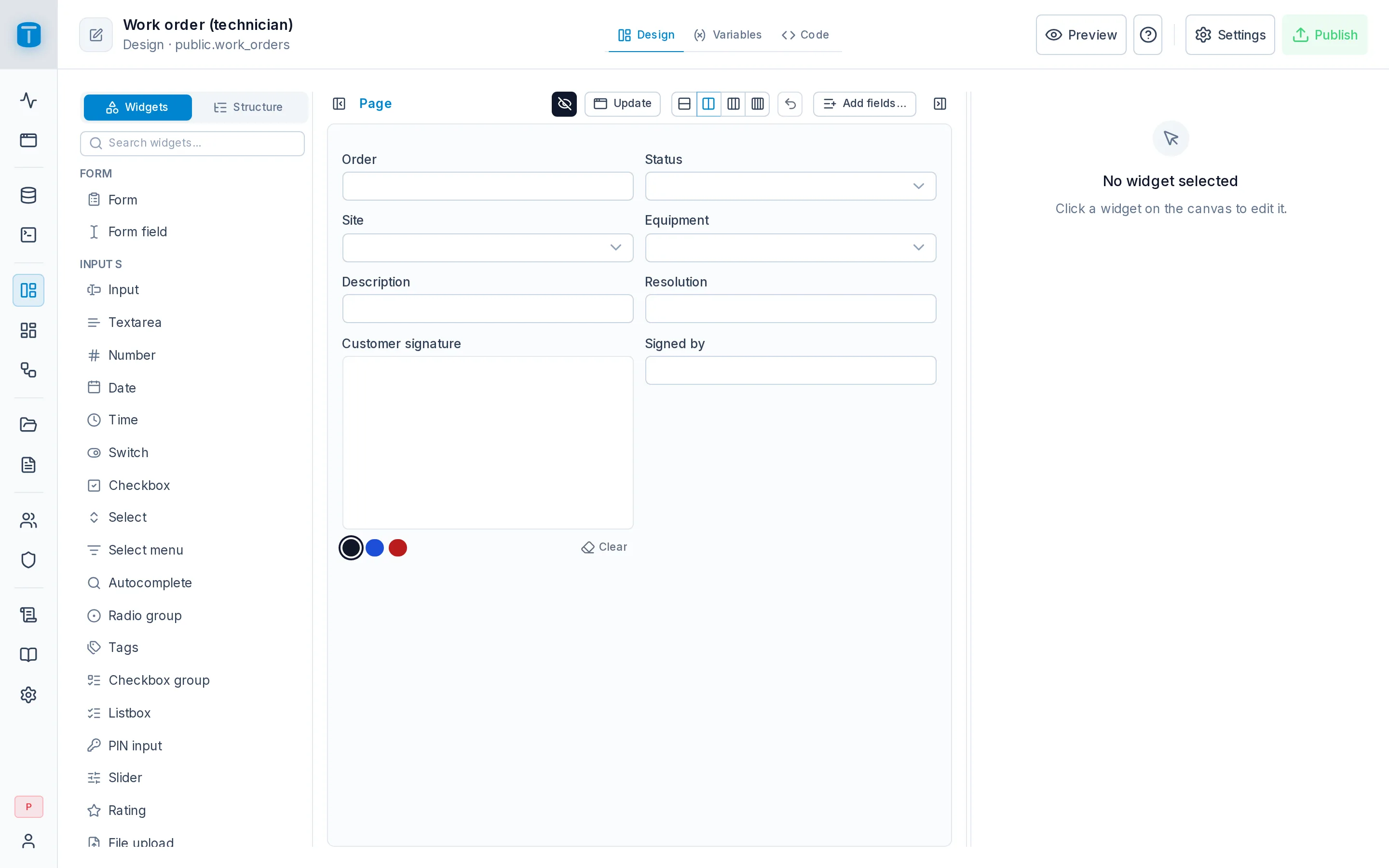
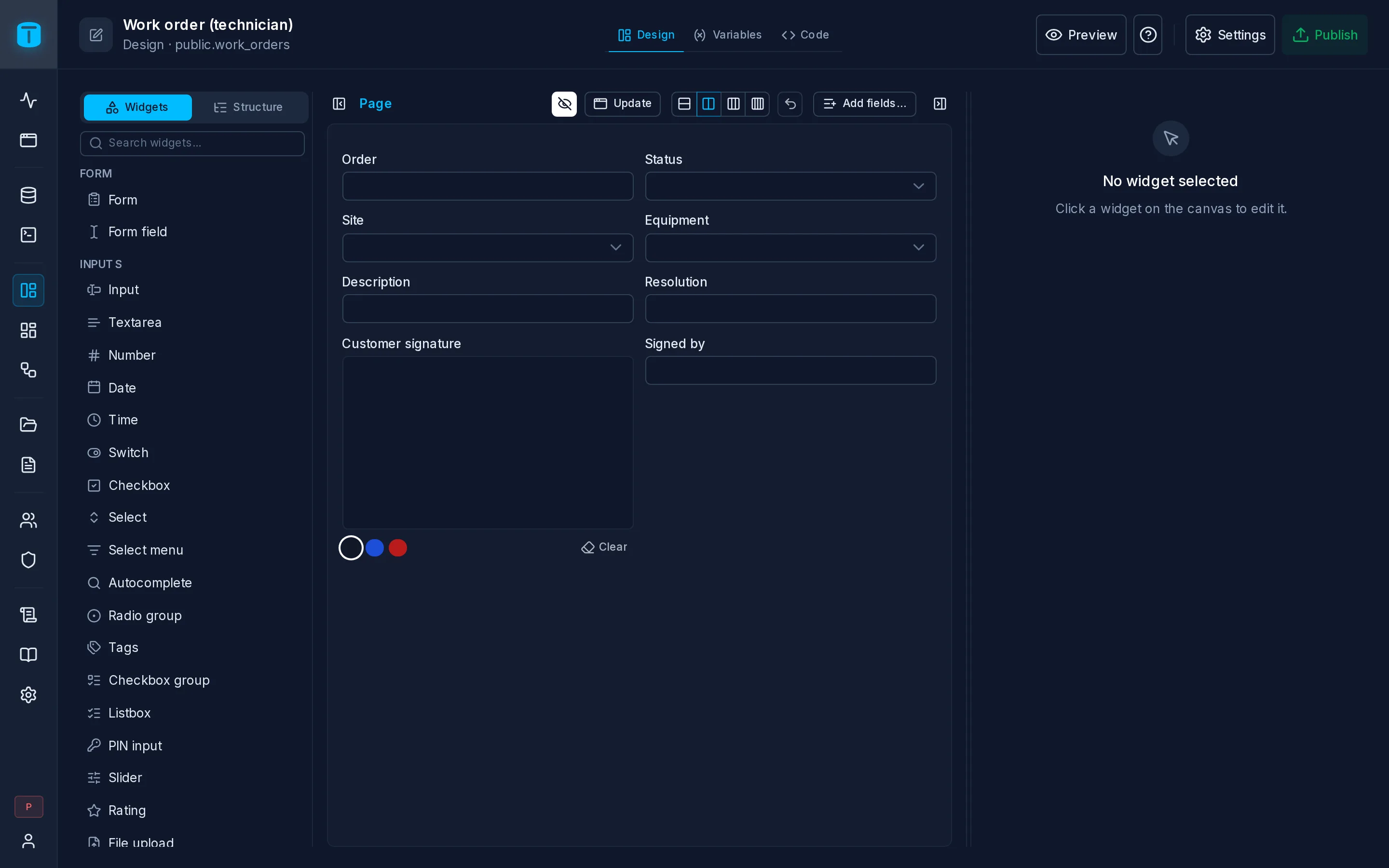
Like the rest of a DataView, every change is saved to the draft as you make it, and users see it once you publish.
Three tabs
| Tab | |
|---|---|
| Design | The page itself: what's on it and where |
| Variables | The page's state, data and calls: the record, a list of technicians, a function to run |
| Code | What happens when a widget or a variable emits an event: a button's click, a record's save |
Design
Design has three panes, which you can resize:
- On the left, two tabs: Widgets, the catalog to place from, with a search; and Structure, the page as a tree.
- In the center, the canvas.
- On the right, the inspector of the selected widget.
The canvas
The canvas draws the real widgets, with containers open and their contents inside. A click selects; nothing acts as it would in the App.
A page is a flow, not a free board: widgets one under another, several to a row, each row as tall as its tallest widget. Each widget has a width in 12 columns: 12 is the whole row, 6 is half. On a phone, widgets stack one per row.
- Drag from the palette to place a widget, or drag one to reorder it or move it into or out of a container. A line shows where it lands. Dragging over a tab opens it.
- The right edge of a widget sets its width, snapping to columns (6/12).
- The bottom edge sets the height of a widget that has no content to size it: a text area, a map, a table, an embedded DataView. Or it can take Fill height: the space left on the screen.
- The toolbar sets every widget in view to 1, 2, 3 or 4 per row, with one step of undo.
Some containers are edited in place (a Card, a Form, Tabs). Others open in their own canvas, because they aren't on the page until something opens them: a Modal, a Slideover, a Drawer, a Popover's content. On the page they show as a compact block (Modal · confirm · 3 widgets · Open). Focus opens any container alone in its own canvas. A breadcrumb leads back.
A widget hidden by a formula is drawn faded and dashed, tagged Hidden · formula. Under the canvas, the path of the selection: cardSignature › modalSignature › body › signaturePad.
Structure
Structure shows the page as a tree: each container with its slots (a Card's header, body and footer, each tab's content), and modals too. Each row shows what it carries: a visibility formula (an eye), other formulas (ƒ), events wired (a bolt), a configuration error (a red dot).
Click to select, drag to move, + on a container to place a widget in it. The ⋮ renames, duplicates, moves, wraps the widget in a Card or a Box, or deletes it. A search finds widgets, with filters for hidden ones, ones with a formula and ones with an error.
The inspector
| Tab | |
|---|---|
| Props | The widget's name and its properties, each with its editor. A property can be fixed, bound to a variable, or computed by a formula. Advanced has the properties every widget shares, such as Visible |
| Style | Spacing (margin and padding), alignment, background, border, radius and shadow, from the theme's scales so the page works in light and dark mode. Reset clears them. Advanced › CSS classes takes Tailwind classes for what the scales don't cover |
| Events | Each event the widget emits, with a function of the page's Code to call. Create handler writes the function for you |
| From the column | For a form field bound to a column: the column's presentation, read-only, with Edit in the table |
A form field bound to a column takes its label, description and help from the column until you give it its own, and its control too: change it under Props, and Use the column's goes back.
Keyboard
| Key | |
|---|---|
Delete, Backspace | delete the selection |
Ctrl/⌘+D | duplicate it |
F2 | rename it |
Alt+↑/↓ | move it up or down |
Esc | deselect, then step up the breadcrumb |
On a phone or a tablet, the canvas doesn't drag: you edit through the inspector, and Add widget opens the catalog.
A record form
On a page with a record (a record form, a Form, a Master-detail, a Custom page with a record table):
- Its fields are form fields bound to the record's columns: a required column, a
CHECKlist's options and the user's field permissions are read live from PostgreSQL. See Settings › Form. - Add fields… lists the record's columns that aren't on the page yet and adds them, each with its control.
- The toolbar's button with the form's current mode (Sidebar, Page…) opens how the form opens, the same options as Settings › Form.
Acme's technician form, generated with one field per column, becomes a phone screen in a few steps: a Card Check-in with a Location button, a Card Photos with a Camera, a Detail of the parts used, and a Signature for the customer, which Acme's CHECK requires once the order is completed.
A Custom page
A Custom page also has a header and a footer:
- Header: buttons and dropdown menus, shown in the App's page header beside the title.
- Footer: buttons, menus, text, badges and boxes, pinned under the page while it scrolls, for totals and a main action.
Preview
Preview shows the draft as the App will, over live data. It saves pending changes first. A Call (a function, a workflow, a table write) asks Run … for real? before running, because it writes.
Device switches between Desktop, Tablet and Phone. Tablet and Phone show the real App, in a device frame at that size: its header, its menu, its phone form, nothing simulated.
When you save and publish
TotalBase checks the page every time it's saved and published: every widget's configuration against the catalog, every binding against a variable that exists, every event against a function in the Code. A problem shows where it is (the Structure's red dot), and Publish refuses until it's fixed.
These checks help you build the page. They aren't its security: every read and write the page makes goes through the Data API, as the user.