

Editor
In the admin: Workflows › a Workflow
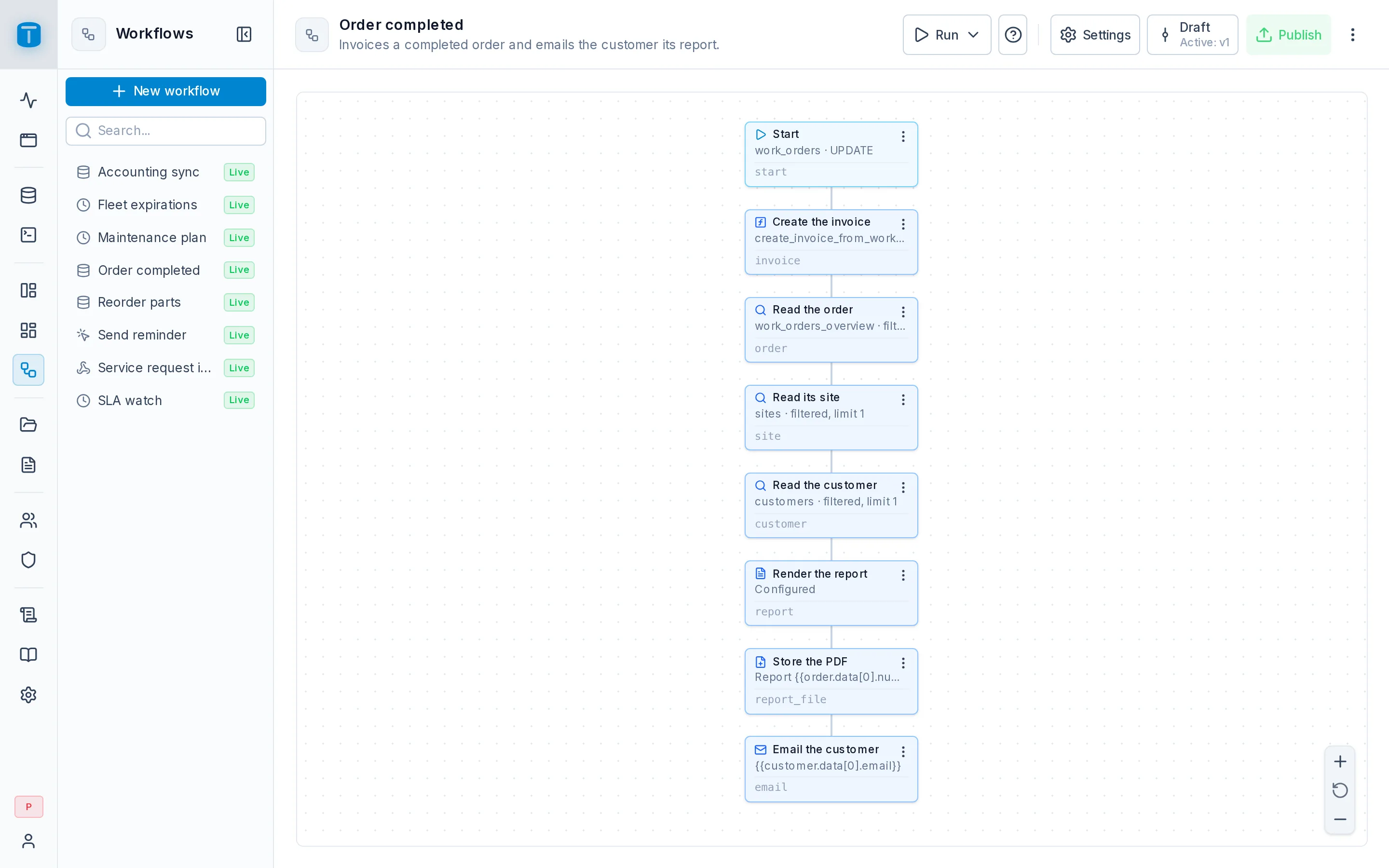
Opening a workflow shows its editor: the design as a tree, from Start at the top down to the last steps. Every change is saved into the draft as you make it; the header says Saving… or Saved beside the name, and offers Retry if a save fails.
The canvas
Each step is a card with its icon, its label, a line summarizing its configuration (Not configured until it has one) and, at its foot, its Step ID. The canvas has Zoom in, Reset zoom and Zoom out controls.
- Start is always first. It shows the trigger; clicking it opens Settings › Trigger.
- Clicking a step opens its configuration. Save applies it to the draft; Cancel leaves the step as it was.
- Branches of a Condition or a Select case are drawn side by side, each labeled with its output.
- A loop's body, the steps under For each item's Item or Process in batches' Batch, is drawn inside a dashed box.
- An error branch starts with a card tinted red.
Outputs and adding steps
A step's ⋮ menu lists its free outputs; each opens the step catalog, grouped as Data, Control, Code, Integration, Communication, Files, Documents and Composition. Picking a step connects it to that output.
| Step | Outputs |
|---|---|
| Start | Add step |
| Condition | True, False, Error |
| Select case | one per case, by its name; Default when it has one; Error |
| For each item | Item (the loop's body), Done (after the last item), Error |
| Process in batches | Batch (the loop's body), Done, Error |
| Finish with result, Finish with error | none: nothing runs after them |
| Every other step | Success, Error |
Each output leads to at most one step, and an output already in use is disabled in the menu, so the design is always a tree. An output you leave empty is valid: a run that reaches it ends there, successfully. A workflow doesn't need to end in a Finish step.
A loop can't contain another loop: For each item and Process in batches can't be added inside a loop's body.
A workflow holds at most 100 steps, Start included. At the limit, every add entry is disabled and says so. The other limits on a design (connections, the size of a step's configuration) are refused before saving, with the step named.
Step ID
The first field of every step's configuration is its Step ID: the short name other steps use to read its result, as in {{read_site.data[0].customer}}. It's proposed from the step's type (read_records, then read_records_2) and you can rename it:
- letters, numbers and underscores, up to 20 characters;
- unique in the workflow;
start,itemanderrorare reserved.
Give steps IDs that say what they hold (invoice, pdf, site): they're what you'll type in later steps. See Values.
Deleting steps
Delete in a step's ⋮ menu asks to confirm, with a Confirm checkbox. A step with steps below it removes them all: Delete "Send email" and 2 downstream steps?.
Renaming or removing a case of a Select case removes the branch that was connected to it.
Handling errors
A step that fails ends the run as failed, unless its Error output is connected. Then the run continues there, and the next step reads what went wrong:
{{error.code}}      INSUFFICIENT_STOCK
{{error.message}}   new row for relation "stock" violates check constraint …
{{error.detail}}    more detail, when the error has it
{{error…}} is available only in the step directly connected to the Error output. The failed step stays failed in the run's history, and the run is marked Handled errors: it can still end successfully.
Acme's Order completed connects the Send email step's Error output to an email to the branch's dispatcher, so a customer with a wrong address doesn't go unnoticed.
The header
| Item | |
|---|---|
| Called by N | Shown when other workflows run this one with Execute another workflow: a menu of them, each marked live or draft only |
| Run | Test or Production, see below |
| Settings | The workflow's settings |
| Disabled | The workflow is off: no trigger starts it. Auto-disabled, in orange, after too many failed runs in a row; its tooltip gives the count. Enabling is in Settings › General |
| Unpublished changes | The draft differs from the live version |
| Versions | The published versions, see Versions |
| Publish | Creates the next version |
| ⋮ | Delete… |
Run
Run has two modes:
- Test: The draft as it is. Its effects are real. It runs the saved draft as you, whatever its trigger and whether or not it's published or enabled. A pending save is made first.
- Production: The published version (vN). It runs the live version as a production run. It's disabled, with the reason, when the workflow isn't published (Publish this workflow before running it.), when its trigger is a database event or a webhook (… runs from its own trigger - use Test run to try the draft.), or when it isn't enabled (Enable this workflow before running it.).
Both open the Run modal:
- Trigger input: a JSON editor for what the run reads as
{{start.data}}. For a database event or a webhook design, type the shape that trigger would supply, such as awork_ordersrow. A Manual workflow with an input form shows its fields instead. A Production run of a Schedule has no input: it runs exactly as its schedule would, as its Execute as user, with the schedule data. - Run test or Run. A Manual workflow with a Confirmation asks it first, in production only.
- The result: the run's status, result or error, duration, and every step, which opens to show its input, output and error. Open in Runs shows the same run in Settings › Runs.
The modal shows each step's values as they were, in full. What's stored in Runs follows the workflow's history level and hides passwords, tokens and keys.
A test run doesn't publish or enable anything, and doesn't count toward auto-disable.
Publish
Publish asks Publish as vN?, with an optional note shown in Versions. Before creating the version, TotalBase checks that the workflow can run, and lists every problem at once:
- a step missing what it needs: a table, a function, a URL, a recipient, a subject or template, a file, a wait time, rules;
- a table, view or function that no longer exists or isn't
ACTIVE; - a
{{…}}value naming a step that doesn't run before it; - an Update or Delete records step with no filter, while the Data API requires one;
- a loop with nothing connected to its Item or Batch.
Publishing an unchanged draft does nothing and says Nothing to publish. Publishing doesn't enable the workflow.
Previewing a version
Choosing a version in Versions shows it on the canvas, read-only: no adding, editing or deleting. A banner says which version you're viewing and offers Restore (copy it into the draft), Save as… (a new workflow from it) and Back to draft.