

Publishing
In the admin: a DataView › Publish
Users never see a DataView you're editing. They see its live version, the last one you published, in the App, if one of their roles is granted it. This page covers publishing and granting; the App covers where it shows.
Publish
Every change you make in a DataView's settings or its Design form is saved to its draft as you make it. When the draft differs from what users see, the header shows Unpublished changes.
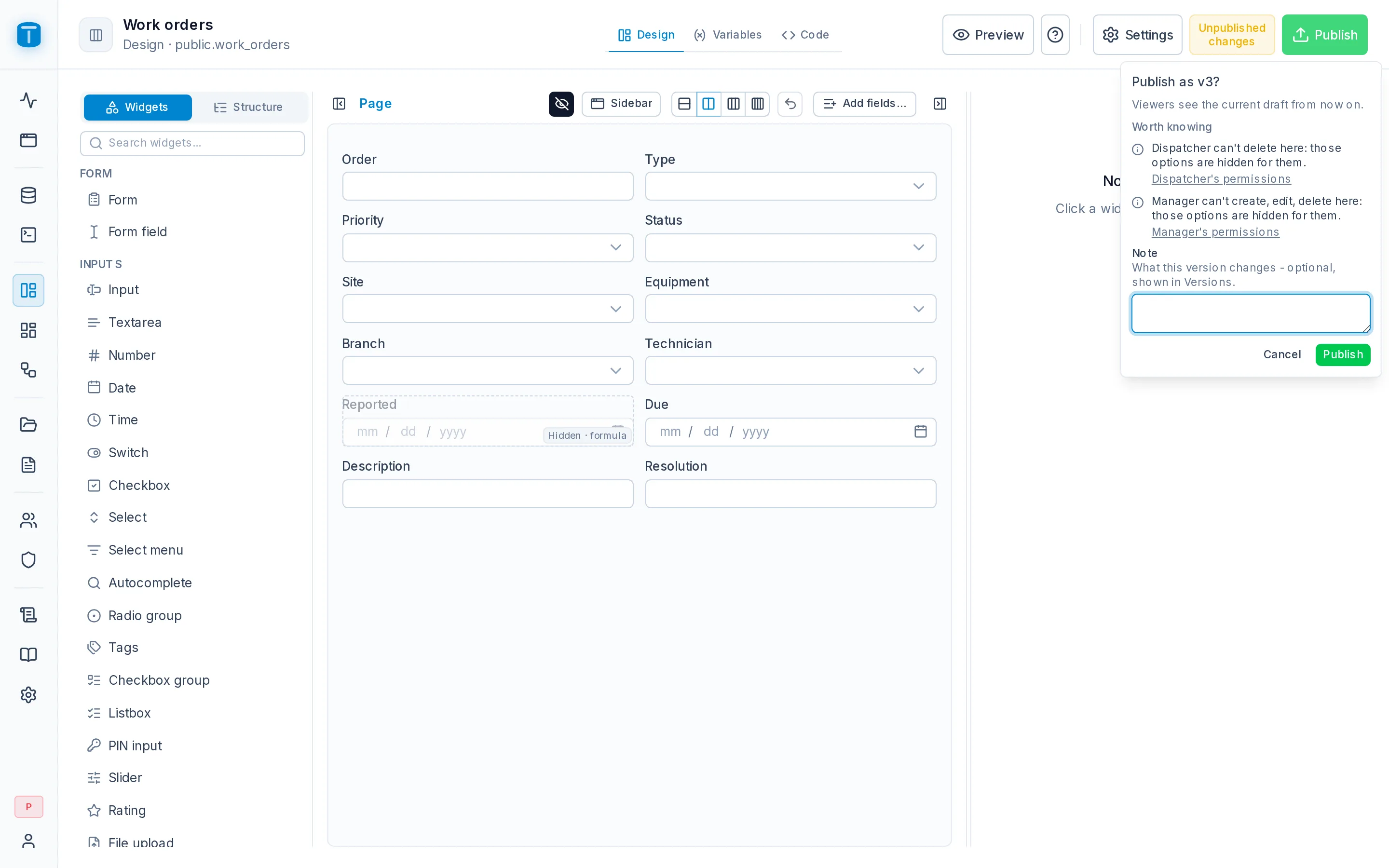
Publish, in the header, asks Publish as v4? and takes an optional note about what the version changes. Each Publish creates a new numbered version, and users see it from then on.
Publishing checks the DataView first: a page's variables and every widget's configuration are validated, and a problem stops the publish with what to fix. It also publishes the DataViews it contains: a Master-detail publishes its detail with it.
Preview, also in the header, opens the draft with live data before you publish.
What a version freezes
A version keeps everything about the DataView as it was: its settings, its columns, its form and code, and also how its columns look. Labels, formats, colors and how a related row is shown come from the tables in Database, and a version freezes them.
So changing a column's label in Database doesn't change a screen people are using. The DataView shows Unpublished changes instead, and the column's panel lists the DataViews it affects, with Publish now for each. See Column presentation.
What applies at once
Some things aren't part of a version and apply as soon as you save them:
- the DataView's name, description, icon, color and label in the menu;
- the roles that may open it (Settings › Security);
- whether it's in the App menu.
Versions
Every version stays in the DataView's history, where you can open it, restore it into the draft, save it as a new DataView or delete old ones. See Settings › Versions.
Who sees it
A published DataView appears in a user's App when both are true:
- one of their roles is granted it, in Settings › Security;
- they may read its source table or view.
Administrators see every published DataView. A DataView a user may not open answers as if it didn't exist.
What they can do on it still follows their permissions: New only if they may create rows in the table, editing only if they may update, and only the rows their row filters allow. See Object access.
READ on work_orders, the DataView doesn't appear for it. The reverse is also true: a role that may read work_orders can read it through the API whether or not it has the DataView.Warnings
When something would stop a DataView from working for someone, its header shows a warning count beside Publish. Click it to see each warning and the link that fixes it:
| Warning | Fix |
|---|---|
| Not published: no one sees it in the App yet. | Publish |
| No role opens it: only administrators see it. | Choose roles, in Security |
| It names a column its source no longer has. | Data |
| A role opens it but can't read its table: they see an error instead of rows. | The role's permissions |
| A role can't read what a foreign key shows: they see an id instead of the row. | The role's permissions |
| A role can't read a page variable's table: the variable fails for them. | The role's permissions |
Under Worth knowing it also lists what is often intended: columns a role can't read (they stay empty for it), creating, editing or deleting the DataView allows but a role can't do (hidden for it), and the table's constraints without a message - a write one refuses then reads a generic text instead of what to fix (give each its Error message on the table's Constraints).
Publish lists the same warnings before you confirm. They never block publishing. Dashboards show the first two. An AI agent reads the same list with the check_app tool.
In the App
Once published and granted, a DataView appears in the App, at the end of its menu the first time. Arrange menu moves it into a group, gives it a label and an icon, or keeps it out of the menu.
The slug after publishing
A DataView's slug is its address in the App (/admin/app/dataviews/work-orders) and how links and other DataViews reach it. Once it's published, its settings show the slug locked, and changing it is a deliberate step behind a warning, because links to the old address stop working.
Next steps
- Settings › Security: grant it to roles.
- Roles: object access in detail.