

DataViews
In the admin: App › a DataView
A published DataView opens from the App menu, at /admin/app/dataviews/<slug>. Users see its live version, with only the rows and columns their permissions allow, and only the actions they may take: a role that can't create records sees no New.
The list
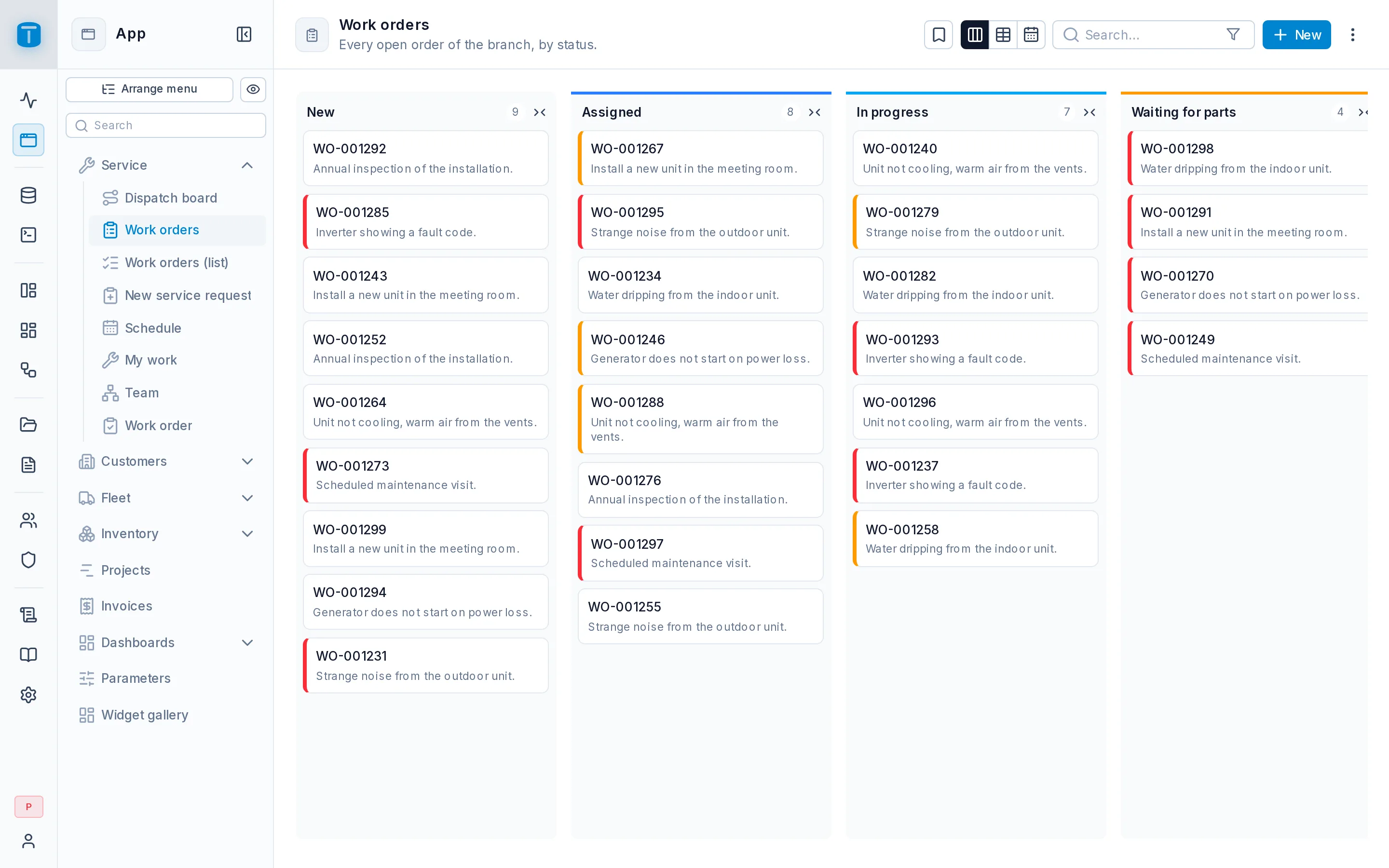
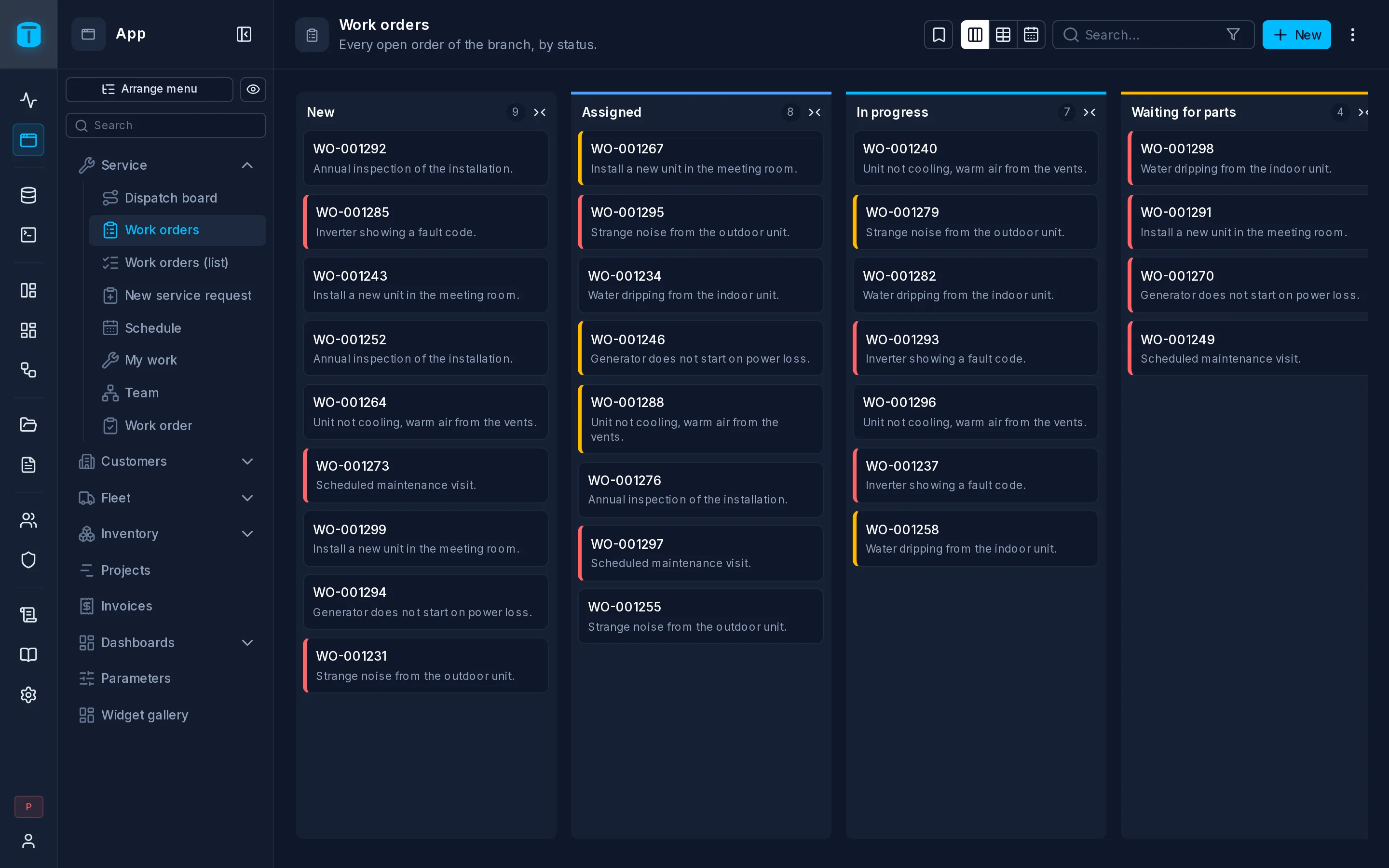
A list DataView (a table, cards, a kanban, a calendar, a Gantt, a map or a tree) shows its rows in its view, with a toolbar above them. What the toolbar offers is up to the DataView's author, in Settings › Actions:
- Views: when the DataView offers more than one, an icon per view switches between them, such as the kanban, the table and the calendar of the same orders. Each user reopens the one they used last.
- Search looks in every column the DataView reads, and in what a foreign key shows: searching a street finds the orders of the sites on it.
- Filter narrows the rows by any column; each filter shows as a chip with ✕. A filter only narrows what the user may already see.
- Saved views keeps a view, its filter, columns and sort under a name, to reopen later or share with a role or a person.
- Export downloads the page or every matching row as CSV or Excel; Import creates rows from a CSV file, all or none; Print makes a PDF of a table.
- Refresh reads the rows again.
In a table, a column's header sorts by it, the Columns menu shows, hides and reorders columns, and selecting rows offers actions on all of them at once. Each user's choices are remembered for them.
A link can open a DataView already filtered (?filter=), as a dashboard's chart does to show the records behind a bar.
A record
Clicking a row, a card or an event opens its record, in a side panel, a window or a page of its own, as the author chose. A ⋮ on each row and card, and in the record's header, has what can be done with it: Clone, Copy, Print, Delete, the DataView's own actions, and, for administrators, its Activity.
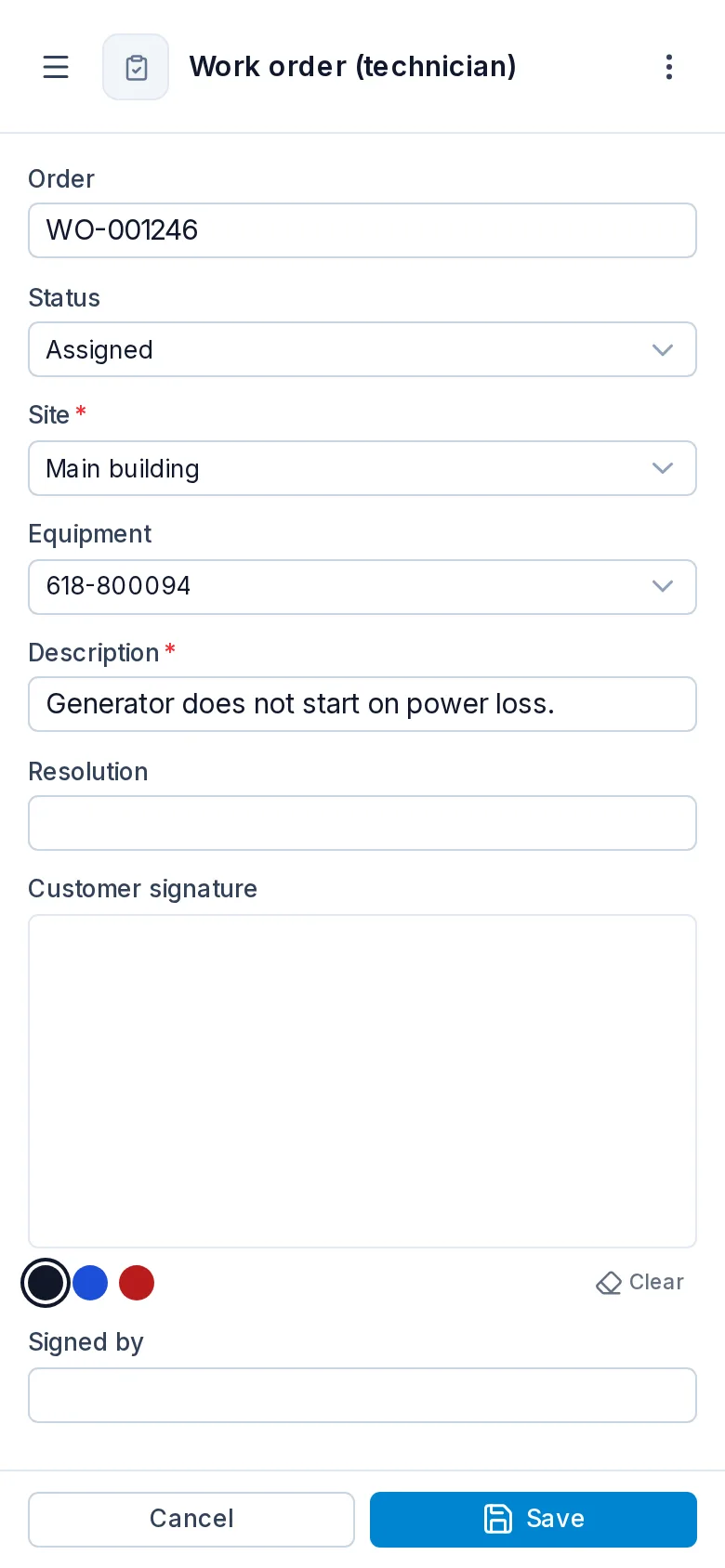
- A record that can be edited shows Cancel and Save at the bottom;
Ctrl+S(⌘+Son a Mac) saves it too. - A record opened to read shows Edit in its header instead.
- Closing, moving to another record or leaving the page with unsaved changes asks first.
A Form DataView shows one record at a time, with Previous and Next to step through them, and New when the user may create records.
Whatever the screen shows, PostgreSQL decides: a value a rule refuses comes back with the database's own message.
On a tablet or a phone
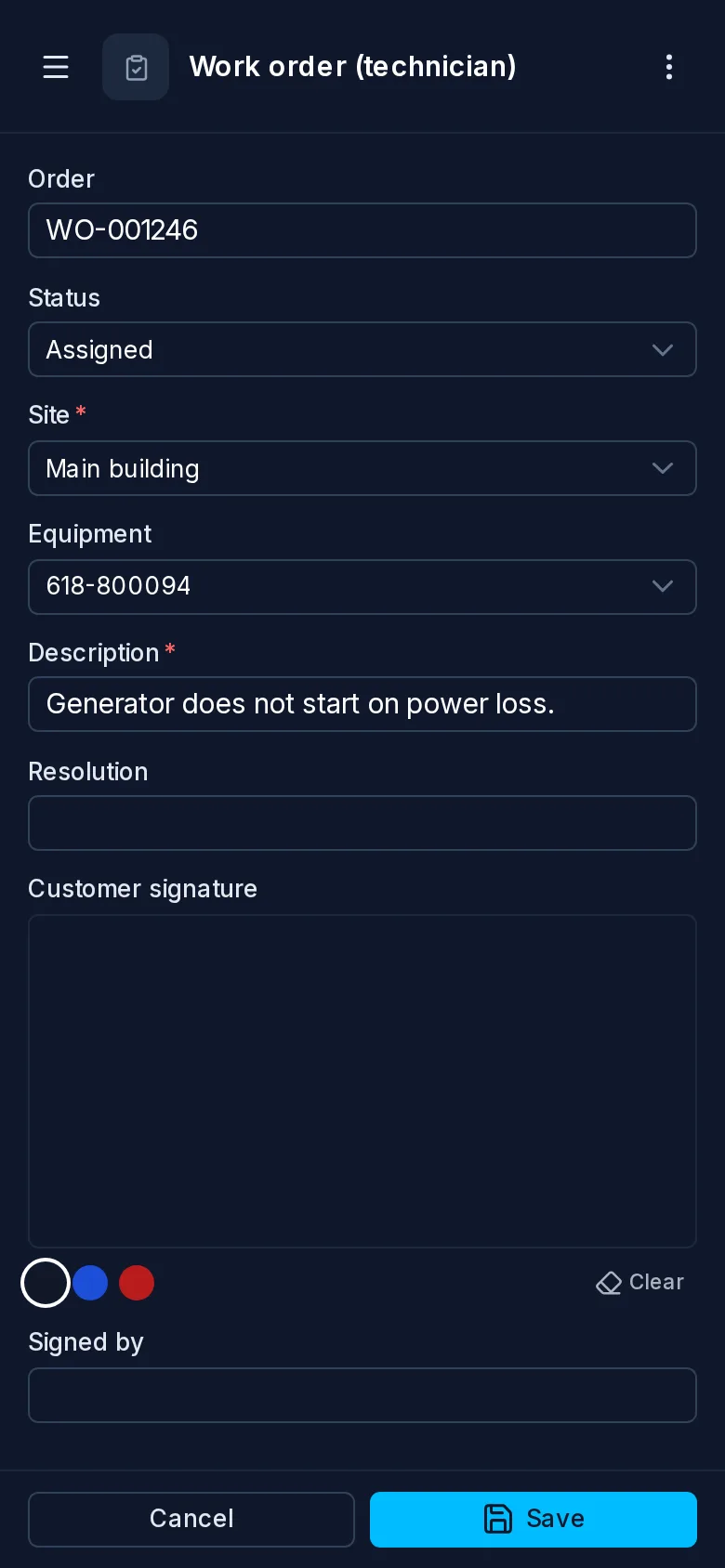
The same DataViews work on any screen. On a tablet or a phone, the toolbar folds what doesn't fit into one ⋮, a record opens over the whole screen, a calendar opens as an agenda, and a table keeps its first column in place while the others scroll.
Next steps
- Dashboards: reports in the App.
- DataView types: what each view shows.