

Data
In the admin: Dashboards › a Dashboard › Settings › Data
Data sets the dashboard's Auto-refresh: how often the App re-runs every widget while the page is open. For a screen left on, such as a wall display in the dispatch office or the live fleet map.
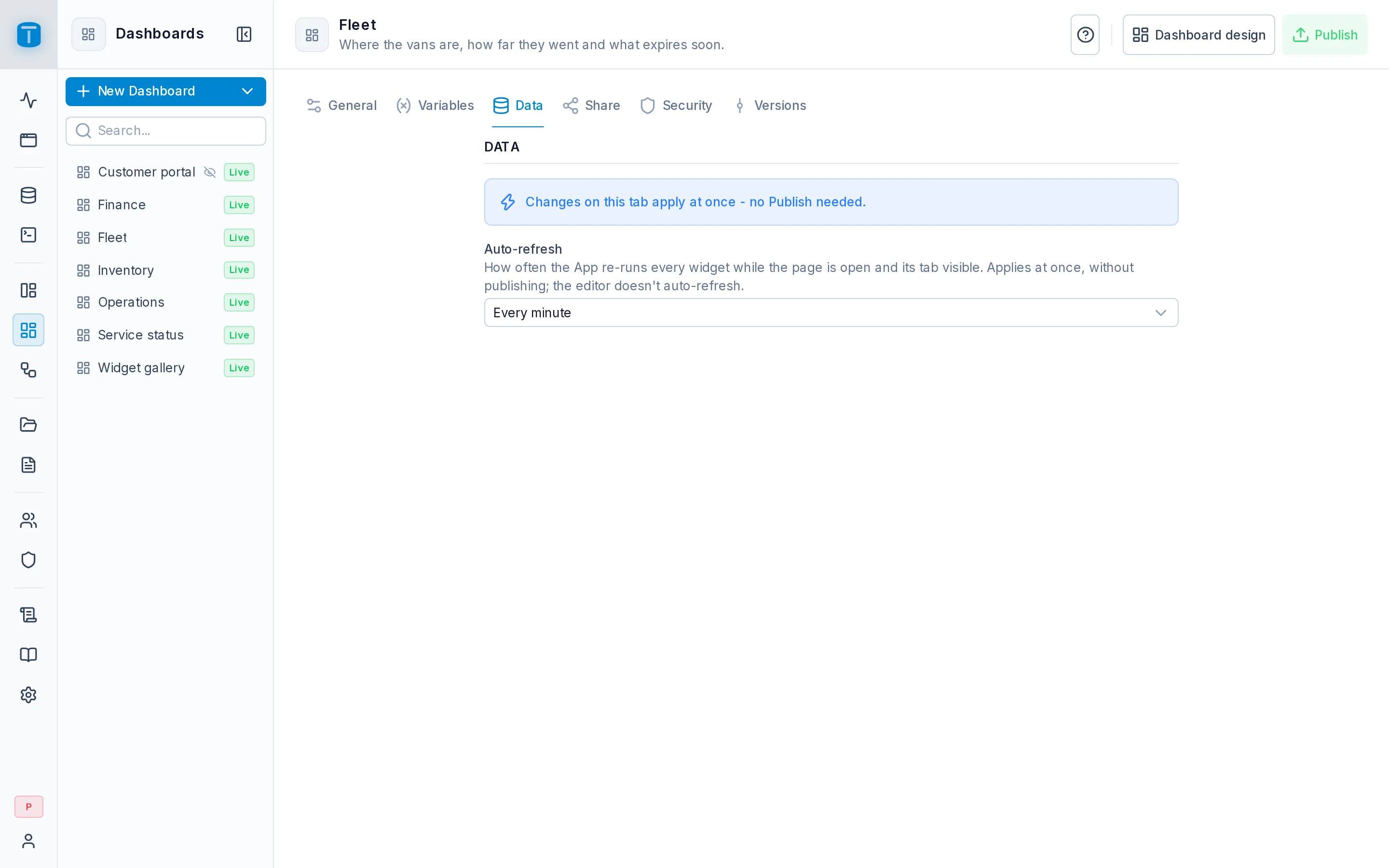
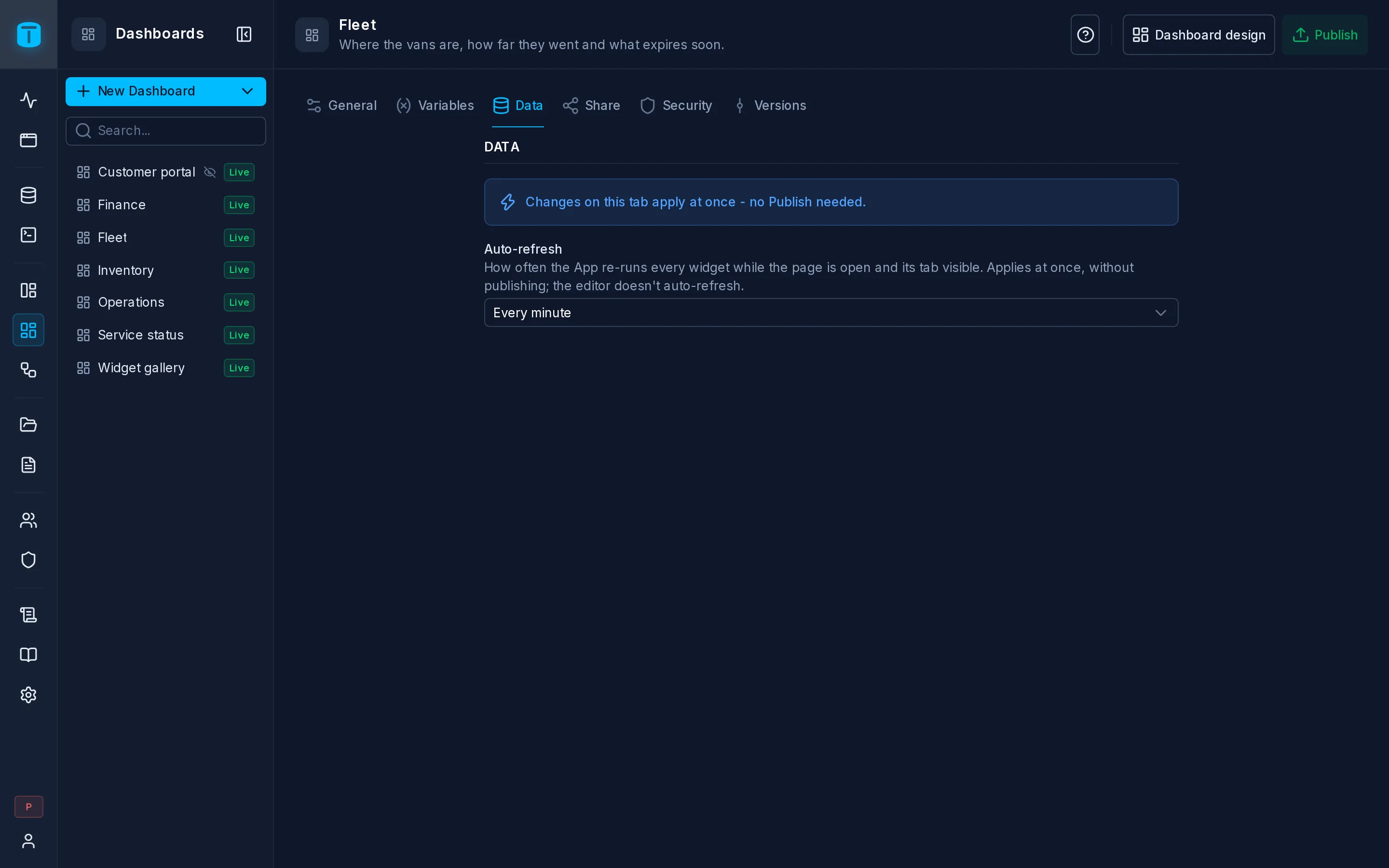
Auto-refresh
| Value | |
|---|---|
| Off | The default. A widget runs when the dashboard opens, when the viewer changes a variable it uses, and on Refresh |
| Every 30 seconds, Every minute, Every 5 minutes, Every 15 minutes, Every hour | Each widget also runs again on that interval |
30 seconds is the shortest, so a dashboard's load on PostgreSQL stays bounded.
The interval applies at once, to the published dashboard, without publishing. It applies wherever the dashboard shows: its own page in the App and a DataView page that embeds it. An embed can keep the dashboard's interval or set its own. The editor never auto-refreshes.
In the App, the header says so: Auto-refresh: every minute.
How a refresh runs
- Per widget. Each widget keeps its own timer, counted from the end of its last run. A tick never starts a run while one is still going, so two runs of a slow widget never overlap.
- Only while seen. While the browser tab is hidden, the timers pause. Back on the tab, a widget that fell due runs once, at once.
- Any other run restarts it. Refresh or a variable's change starts the interval again.
- Failures don't stop it. A failed run shows its error on the card, and the timer keeps going.
- The same execution. Each tick is an ordinary run: read-only, with the time limit and the row cap.
Cached results
The App reuses a published widget's result for a while instead of running its query again, for the same variables, time zone and, when the query reads $USER, the same viewer. With an auto-refresh interval, the result is kept for that interval; without one, for the instance's cache time (5 minutes by default). A viewer's Refresh always runs the queries again. The editor never uses the cache.
The cache time and how many widget queries of one dashboard run at once are instance settings: see Settings › Dashboards.
Next steps
- Share: show the dashboard outside TotalBase.
- Dashboards in the App: what viewers see.